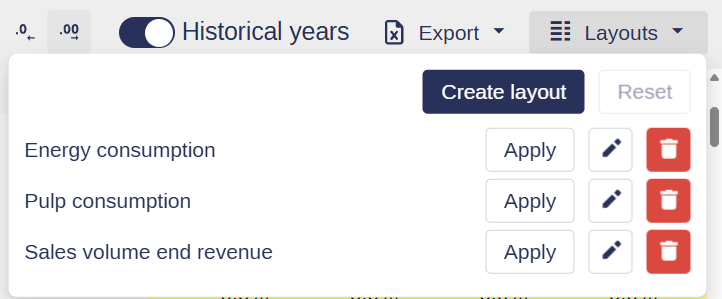
Cash Flow Model layouts
Cash flow model layouts filter the rows in the cash flow model so you only see the rows you need. Use a layout to focus on one part of the model instead of scrolling through every row.
You can create layouts for different purposes, such as reviewing operating cash flows, investment costs or financing details. Switch between layouts when you assess a single project, look at cumulative impacts or run a sensitivity analysis.
Key benefits of cash flow model layouts
Filtered views
Show only the rows you need, such as revenue, cost breakdowns or cash flow variances.Less to read
Hide the rows that are not part of your current analysis.Faster review
Find the figures you need without scrolling through the full model.Quick switching
Switch between layouts to move from a summary to detailed rows.
Creating a layout
Layouts are tied to your model structure and can be created at the group/division/middle, site, or sub-industry level. They can be applied across all alternative types within the model.
How to create a layout
Navigate to the correct model block
Go to the Cash Flow model and select the model block where you want the layout applied.Open the layout editor
Click Layouts in the upper right corner, then select Create layout.Configure your layout
Name your layout
Select the rows to include:
Click checkboxes to select rows individually
Use Shift + click to quickly select a range of rows
Use the search bar to find rows by name
Toggle "Only selected" to preview your selected rows
Save your layout
Once you're happy with the selection, click Save.
Service blocks will always be added to the bottom in the layout creation settings.