Creating and Editing Strategic Alternatives and Strategic Building Blocks
Strategic Building Blocks (SBBs) and Strategic Alternatives (SAs) are key components of your strategy framework. This guide will walk you through how to create, edit, and quickly update SBB and SA details with ease.
Creating a Strategic Building Block (SBB)
Follow these steps to create a new Strategic Building Block (SBB):
Navigate to Strategy Development → Alternative List.
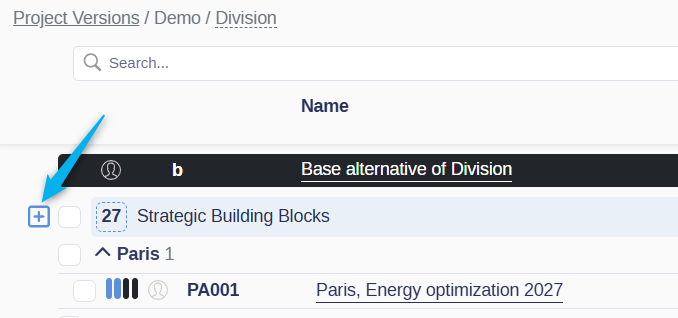
Click the [+] button next to the Strategic Building Blocks header.
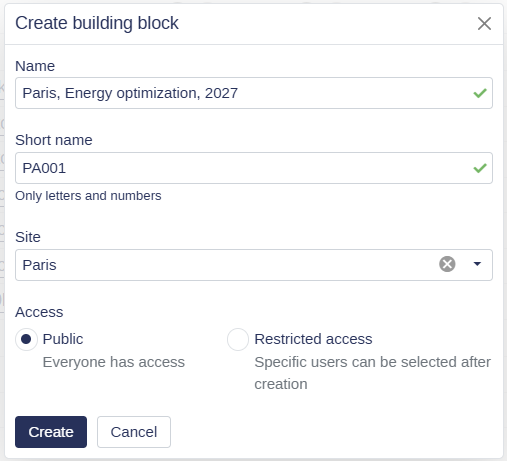
In the pop-up window, fill in the following details:
Name: A clear, descriptive name for the SBB
Short name: A shortened label used in lists
Site: Select the relevant site
⚠️ Note: You cannot change the site after the SBB is created.
Access settings: Configure if needed
Click Create to save.
✍️ Quick Edit Tip: You can quickly update the name or short name of a Strategic Building Block (SBB) directly from the list. Simply hover over the field and click the pen icon to make your changes.

Creating a Strategic Alternative (SA)
To create a new Strategic Alternative, follow these steps:
To create a new SA:
Navigate to Strategy Development → Alternative List.
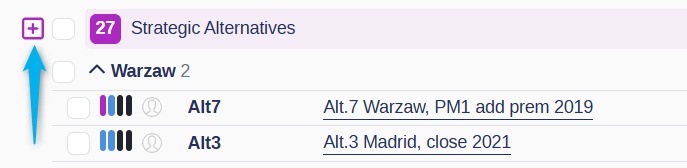
Click the [+] button next to the Strategic Alternatives header.
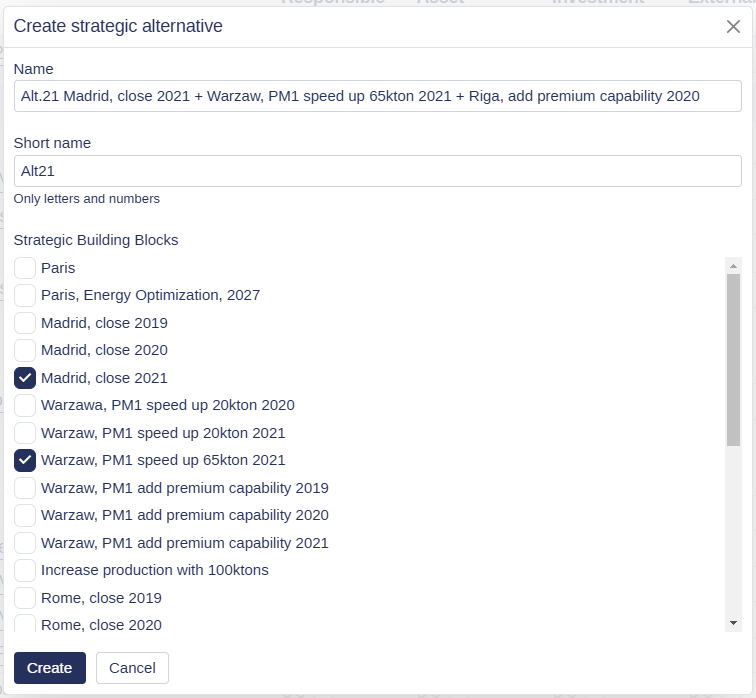
In the pop-up window, provide:
Descriptive name: A clear name for the alternative
Short name: A unique identifier for the alternative
SBB selection: Choose which active Strategic Building Blocks to include
⚠️ Only active SBBs can be selected when creating an SA.
Click Create to save the new Strategic Alternative.
Duplicating a Strategic Building Block (SBB)
Duplicating an SBB allows you to create a new SBB based on an existing one. Follow these steps:
Select the SBB you want to duplicate from the list.
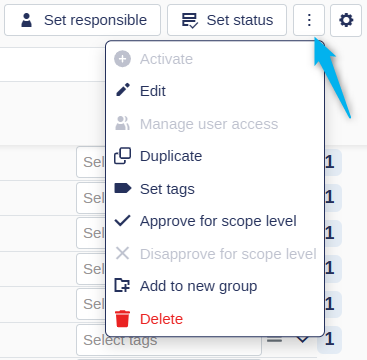
Open the context menu by clicking the three dots (
⋮) in the top-right cornerChoose "Duplicate" from the options.
In the pop-up window:
Enter a name and short name for the duplicate SBB.
Select the site for the duplicate.
Click Create.
Result: The duplicated SBB will appear under the Strategic Building Blocks header as "Copy of [Original SBB Name]."
Duplicating a Strategic Alternative (SA)
Duplicating an SA is a quick way to test variations of an existing alternative. Follow these steps:
Select the SA you want to duplicate from the list under the Strategic Alternatives header.
Open the context menu by clicking the three dots (
⋮) in the top-right cornerChoose "Duplicate" from the options.
In the pop-up window:
Enter a name for the duplicate SA.
Ensure no tick boxes are selected unless specific adjustments are needed.
Click Create
Result: The duplicated SA will appear under the Strategic Alternatives header as "Copy of [Original SA Name]." It is a replica of the original SA and can be modified independently.
Edit a Strategic Alternative (SA)
To edit an existing Strategic Alternative, follow these steps:
Select the SA you want to edit from the list.
Open the context menu by clicking the three dots (
⋮) in the top-right corner.Choose "Edit" from the available options.
Make the necessary changes:
Update the name of the SA.
Modify the short name (unique identifier).
Adjust the included SBBs as needed.
✍️ Quick Edit Tip: You can also quickly update the name or short name of an SA directly from the list. Hover over the SA name or short name, then click the pen icon to make your changes instantly.
Only active SBBs can be included when creating an SA. However, if an included SBB is deactivated after the SA is created, it will still appear in the list but will be displayed with a strikethrough.

Deleting Strategic Alternatives and Strategic Building Blocks
Strategy work is iterative, so you will often end up with alternatives you no longer need. You can remove them from the Alternative List one at a time, or select several and delete them in a single action.
How to delete one or more alternatives
Navigate to Strategy Development → Alternative List.
Select the alternatives you want to remove. You can select more than one, and the selection can include both Strategic Building Blocks and Strategic Alternatives.
Open the context menu by clicking the three dots (
⋮) in the top-right corner.Choose "Delete" from the options.
Confirm the deletion in the pop-up window.
Result: The selected alternatives are removed from the Alternative List.
Which alternatives can be deleted?
Only alternatives that are not in use can be deleted. This protects work that other parts of your strategy depend on.
Alternative type | Can be deleted when |
|---|---|
Strategic Building Block (SBB) | It is not included in any Strategic Alternative. |
Strategic Alternative (SA) | It is not approved for the scope level. |
💡 Tip: If you want to take an alternative out of reports and charts but keep the work, change its status instead of deleting it. 👉 Learn more about Alternative Status