Export of Cash Flow Model
You can export the cash flow model to Excel. Before the file is created, the export dialog lets you choose which nodes to include, whether to include sensitivity, and which layout to use for each sheet.
Layouts and the export
A layout decides which rows you see in the cash flow model. A layout can be applied on the node you are on, or inherited from a parent node. A layout also filters the exported data, so the export dialog shows which layouts are applied and lets you change them for the export.
👉 Learn more about cash flow model layouts
Exporting the cash flow model
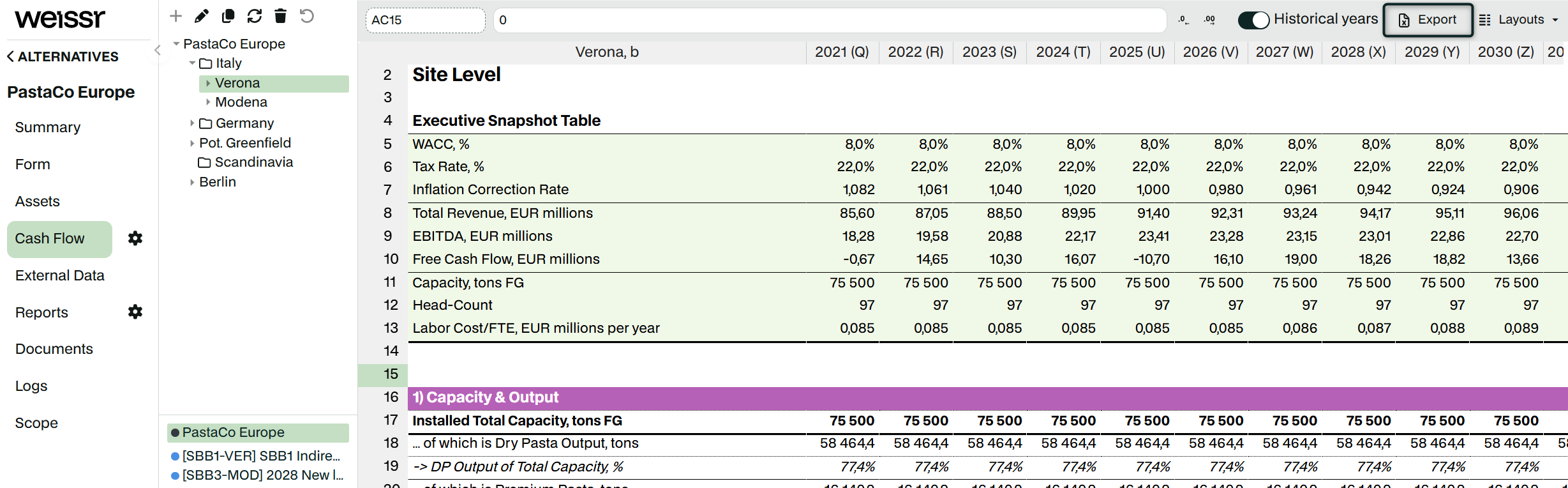
On the Cash Flow tab, click Export in the top right corner.
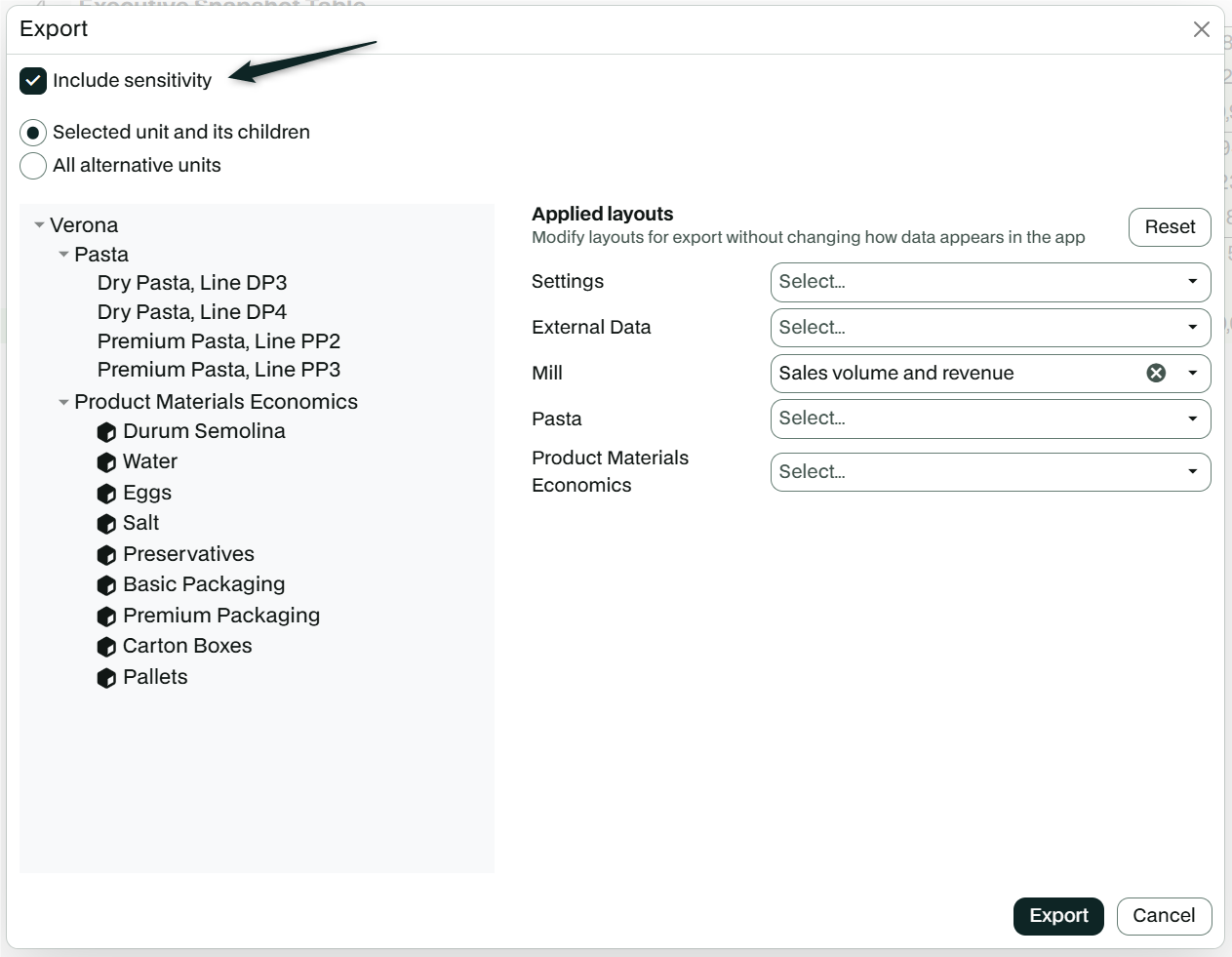
In the export dialog, select Include sensitivity if the export should include sensitivity data.
Choose which nodes to export. See Choosing which nodes to export.
Check the layouts for each sheet. See Choosing layouts for the export.
Start the export. Weissr downloads an Excel file.
Choosing which nodes to export
Option | What it exports |
|---|---|
Selected unit and its children | The node you have selected and all nodes below it. |
All alternative units | All nodes in the alternative. The top node of the alternative is the starting point of the export. |
After you choose an option, the dialog shows the nodes as a tree, so you can check what the export includes.
Choosing layouts for the export
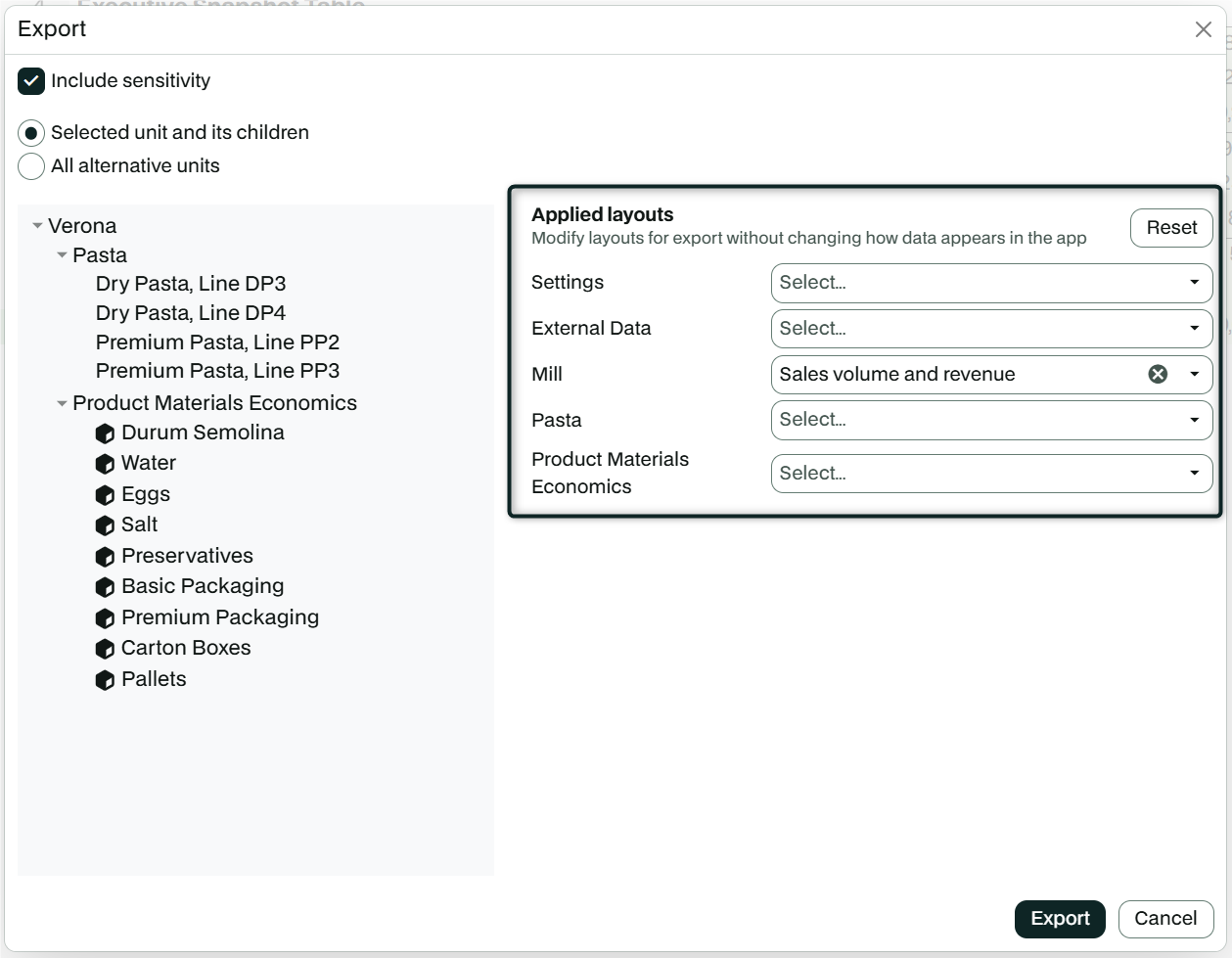
The export dialog lists the layouts that can apply to the nodes in your export:
a layout group for each type of node in the export
Settings layouts and External data layouts, which are always listed
Layouts that are applied in the cash flow model are already selected. You can:
choose another layout,
remove a layout,
select a layout that is not applied in the model, or
click Deselect all layouts to export without layouts.
📌 Note: The layouts you choose in the export dialog only apply to this export. They do not change the layouts applied in the cash flow model.
Layout name in the Excel file
When a sheet is exported with a layout, the layout name is shown in the first row of the caption column of that sheet.
Permissions
The export dialog only shows nodes and layouts for the nodes you have access to.