Scope
The Scope is the organizational structure of a Capex Strategy project as you see and edit it inside the application. It sits at the top of the strategy model hierarchy, typically mapping to your overall business or group level, and it is the entry point for building your asset structure. Everything below it, from divisions down to the categories that assets hang off, is created and maintained in the Scope grid. This page covers the levels, every column in the grid, and how to add, duplicate, edit, move and delete nodes.
What is the Scope?
You structure the scope as a flexible tree that runs from the Group node down through Divisions, Sites, Sub-industries and Categories, with optional Middle levels in between. Every project has a single Group node at the top, and that node cannot be deleted or moved.
The Scope grid is opened from inside an alternative: Base Alternative, a Strategic Building Block or a Strategic Alternative, then Scope in the left menu. The structure itself is normally built in the Base Alternative.
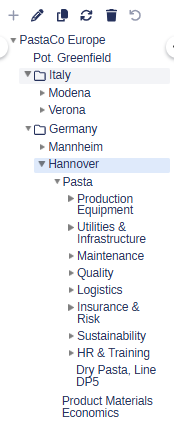
Scope structure levels
Level | Description |
|---|---|
Group | Top-level node, created automatically. One per project. Cannot be deleted or moved. |
Division | Business units, for example "Europe" or "Consumer Goods". Every project needs at least one. |
Middle level | Optional grouping, for example "Nordic mills". You can use several layers of middle levels. |
Site | Physical plants and facilities. This is the level that carries country, currency and the financial assumptions. |
Sub-industry | Specific production lines or process areas, for example pulp or paper. Categories are created under a sub-industry. |
Category | The asset category, typically a machine or a process, for example PM1, converting line 1 or stock yard. Assets hang off categories, and this is where cash flow blocks are connected. |
Use Middle levels to organize large divisions into manageable clusters. They do not affect model logic.
💡 Info: Capex Strategy calls the plant level a Site. Capex Management calls the same thing a Production unit. They are the same node seen from two modules.
What you can do in the Scope
Add Middle levels, Sites, Sub-industries and Categories, both machines and materials
Edit location, currency and the financial assumptions for each level
Duplicate an existing node, and drag and drop nodes into a different part of the tree
Connect cash flow model blocks to categories
Delete a node
What you cannot do in the Scope
Delete or relocate the Group node itself
Add cash flow blocks directly to the Group, Division or Site level, since blocks are connected at Sub-industry and Category level
Place one site under two divisions at the same time
Scope grid columns
Each row in the Scope grid is one node, and the columns below describe it. Not every column applies to every level: the financial assumptions belong to Sites, while Divisions and Middle levels only need identification and a currency.
Column | Required | What it does |
|---|---|---|
Name | Yes | The display name of the node. |
Short name | Yes | A compact identifier used in exports and in views where the full name does not fit. Leading and trailing spaces are rejected. |
Country | Yes for Sites | Determines the inflation rate applied when real amounts are converted to nominal amounts for asset outlays. |
Currency | Yes | Determines how the node's data rolls up in reports. |
WACC | No | The weighted average cost of capital used in the investment model for this node. |
Tax rate | No | The tax rate used in the investment model for this node. |
Depreciation years | No | The default tax depreciation period for assets created under the site. |
Small capex | No | The percentage of gross asset value added automatically each year to cover capex below the asset mapping threshold. |
CS | No | Whether the node appears in the Capex Strategy module. |
CM | No | Whether the node appears in the Capex Management module. The node only reaches Capex Management once the current strategy is updated. |
📌 Note: The columns marked "No" are not required to save a node, but the model's numbers depend on them. WACC, tax rate, depreciation years and small capex all feed the investment model, so leaving them empty gives you a valid node and an inaccurate model.
⚠️ Warning: Changing a node's currency triggers a recalculation of every child node. Expect a short processing delay, and set currencies early rather than late.
What if the country or currency I need is missing?
Countries and currencies come from the Administration panel, not from the Scope grid. If the one you need is not in the dropdown, it has to be created centrally first. Contact your Weissr administrator.
Building and changing the structure
How do I add a site?
Open the alternative you are working in (normally the Base Alternative) and click Scope in the left menu.
Click the + icon at the top of the list of sites.
Fill in the row, pressing Tab to move from cell to cell, or double-clicking each cell individually.
Enter at least Name, Short name, Country and Currency. Add WACC, Tax rate, Depreciation years and Small capex so the investment model is accurate.
Tick CS and CM depending on which modules the site should appear in.
Press Enter, or click outside the grid, to save. The new node is added at the bottom of the list.
How do I add a sub-industry?
In the Scope grid, expand the Site the sub-industry belongs under. The + for sub-industries only appears once the site is expanded.
Click + and choose whether it is a Machine sub-industry or a Material sub-industry. This is the only mandatory choice for a sub-industry.
Press Enter to save.
How do I add a category?
Categories are the machines and materials that assets hang off, so a category has to exist before any asset can be created under it.
In the Scope grid, expand the Sub-industry the category belongs under.
Click + and enter a name, for example PM1 or converting line 1.
Press Enter to save.
💡 Info: Categories can also be created from the navigation tree in Asset Mapping, which is often more convenient when you are building the asset base rather than the organizational structure.
How do I duplicate a node?
Duplicating is faster than creating from scratch when the new node shares most of its settings with an existing one.
Click the Duplicate icon on the row you want to copy.
Change the fields that differ, starting with the name and short name.
The duplicate is placed in the same position in the hierarchy as the original. Drag and drop it into the right middle level if it belongs elsewhere.
How do I create a middle level?
Click the + icon in the list of middle levels, or duplicate an existing middle level.
Enter Name, Short name and Currency.
Tick CM if the middle level should also exist in Capex Management.
Drag and drop the new middle level into the right place in the hierarchy.
Drag the sites that belong under it into the new middle level.
How do I edit an existing node?
Find the node in the Scope grid.
Double-click the cell you want to change and enter the new value.
Press Enter to save.
Alternatively, click a node to open its detail panel on the right and edit its properties there. Changes appear in the tree immediately, without reloading the page.
How do I move a node?
Drag and drop the node onto its new parent in the tree. Use the same action to change the order of nodes within a level.
📌 Note: Reordering sub-industries does not yet carry through to the Scope grid ordering. Reordering sites and higher levels does.
How do I show or hide columns?
Right-click anywhere in the Scope grid.
Click Show/Hide Columns.
Tick or untick the columns you want and confirm.
How do I specify which materials a pulp sub-industry uses?
A pulp sub-industry can be filtered so that only the relevant materials and chemicals are modelled. The filters themselves are created by your Weissr administrator, so your job is to pick the right one.
In the Scope grid, navigate to the site that contains the pulp sub-industry.
Open the Material filter tab. This tab applies to pulp sub-industries only.
Select the filter you want from the dropdown and press Enter.
💡 Info: If the filter you need is not in the list, ask your Weissr administrator to create it.
Deleting nodes
How do I delete a node?
Find the site, sub-industry or category in the Scope grid.
Click the trash bin icon to the right of the row.
Read the confirmation dialog, which lists the alternatives the deletion will affect, and confirm.
⚠️ Warning: In the Base Alternative a deletion is permanent, and if the node contains assets connected to a cash flow block, a dangling connection can compromise the whole model and project. Disconnect those assets from their block before you delete the node.
💡 Info: In a Strategic Building Block or a Strategic Alternative a deleted node can be brought back with Restore. There is no equivalent in the Base Alternative.
Who can change the Scope?
Changing the organizational structure requires a superuser with access to the Capex Strategy module. Beyond that, access to individual parts of the tree is controlled by node permissions, which are granted per level and inherited downwards: a user with access to a middle level automatically has access to every site and sub-industry beneath it.
Permissions are granted per node for viewing the node and its sub nodes, working with the model, connecting assets to blocks, editing model assumptions, and reading the node and model input audit logs. The permission that governs rolling the structure over to Capex Management is Manage Current Strategy.
👉 Assigning Permissions in the Organizational Structure covers how permissions are assigned and how inheritance resolves.
Where are Scope changes logged?
Changes to nodes are recorded in the Capex Strategy Log area, split into tabs by area and sorted newest first. Log visibility follows the node audit log permissions, so you only see entries for the nodes you have audit access to.
How do Scope changes reach Capex Management?
Editing the Scope changes the structure in Capex Strategy only. Capex Management picks the structure up separately, through the current strategy, and there are extra steps involved: the node needs the CM flag, the current strategy has to be updated at Group level, and the project has to be reloaded before the new structure appears under Administration → Capex Management → Organizational Structure.
👉 Updating the Organizational Structure covers the full Capex Management procedure, including updating the current strategy, reloading the project and assigning permissions afterwards.
Best practices
Keep node names short and consistent, for example "NL Paper" rather than "Dutch Paper Mill Line A".
Set currencies and countries early, before assets and models are built, to avoid triggering recalculations later.
Review the structure regularly so nodes and sites still match how the business actually operates.
Tell the people who depend on the structure before you make a significant change to it.
Related pages
👉 Asset Tree Structure, for the allowed parent types at each level and the properties each level carries.
👉 Connecting assets to the cash flow model, for linking categories to cash flow blocks and disconnecting them again.
👉 Assets, for the asset levels below the category.
👉 Nodes (Organizational Structure), for the hierarchy as it is configured in administration settings.
👉 Updating the Organizational Structure, for rolling structural changes over into Capex Management.