Version 5.2.3 (CS) - November 24th 2025
Weissr Capex Strategy
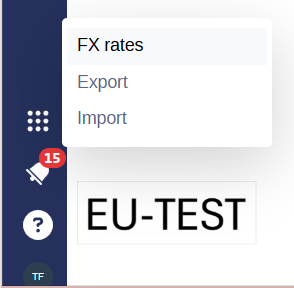
Customize exported data scope before CFM export
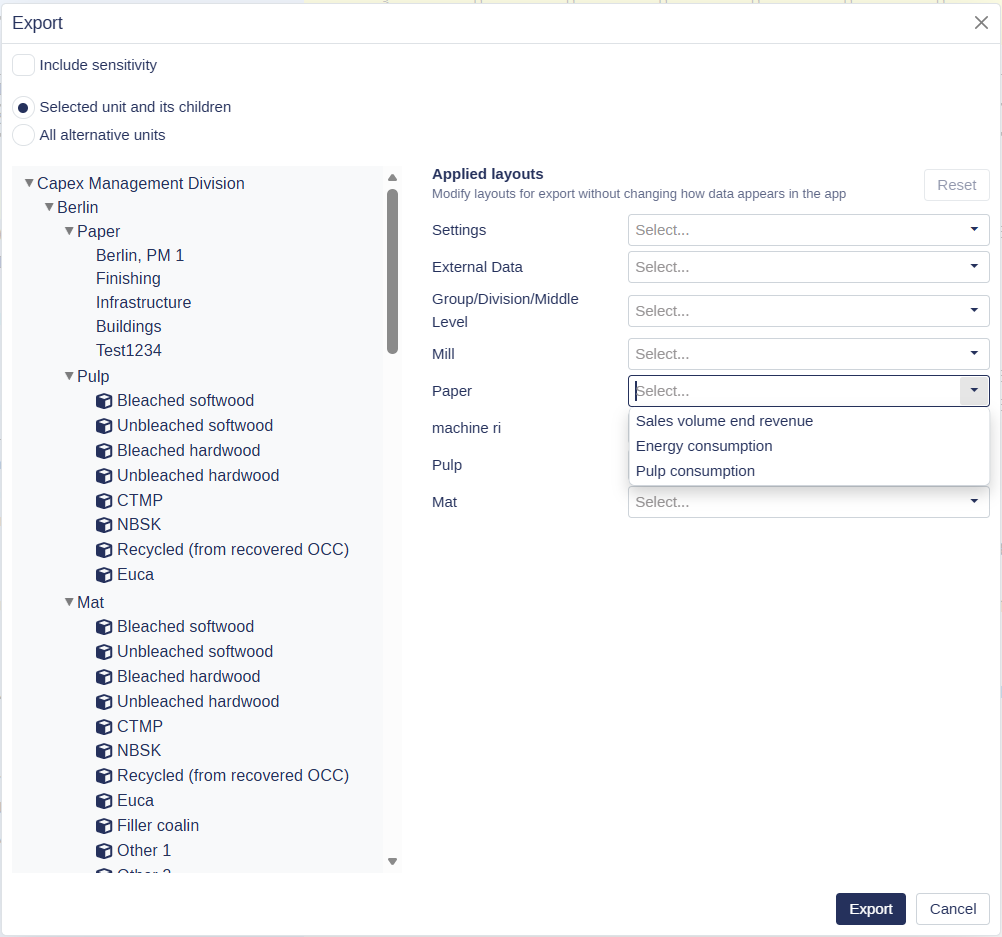
You now have greater flexibility in terms of what gets included when exporting a Cash Flow Model (CFM). Instead of exporting all layouts and data blocks, users can choose which items to include, making exports cleaner and reducing confusion.
📍What’s new
Granular export configuration
Users can select which row layouts and data blocks are included
Provides clearer, more predictable export results
💡 Why it matters
This update ensures exports only contain what you intend, minimizing unnecessary content and reducing post-export cleanup
👉 For more information about the cash flow model export, please find it here
Enhancement to Cash Flow Model layouts
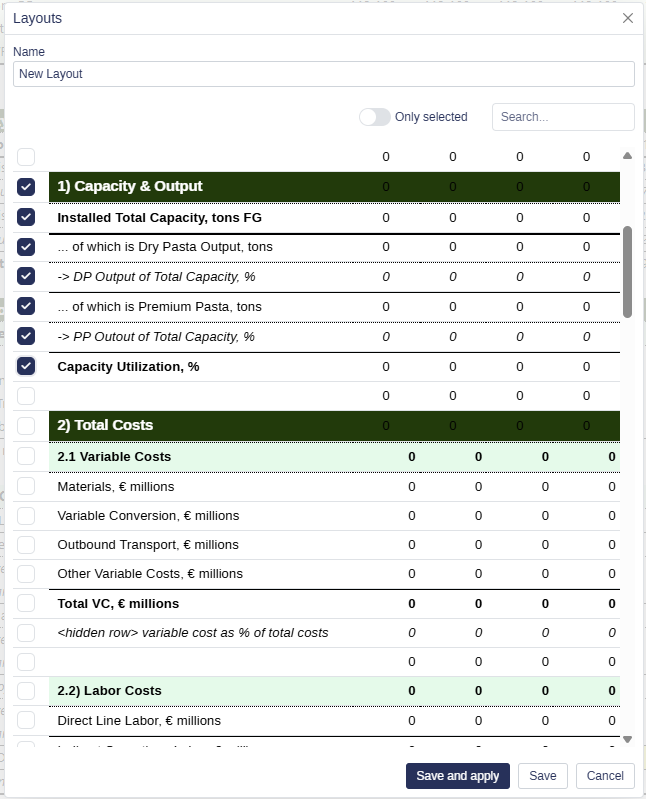
Working with layouts in the Cash Flow Model is now more transparent and efficient. Users get a clearer view of which layouts are active during export and can apply layout updates with fewer steps.
📍 What’s new
Clearer visibility into which layouts are currently applied, helping you decide when to include or exclude layout logic during export
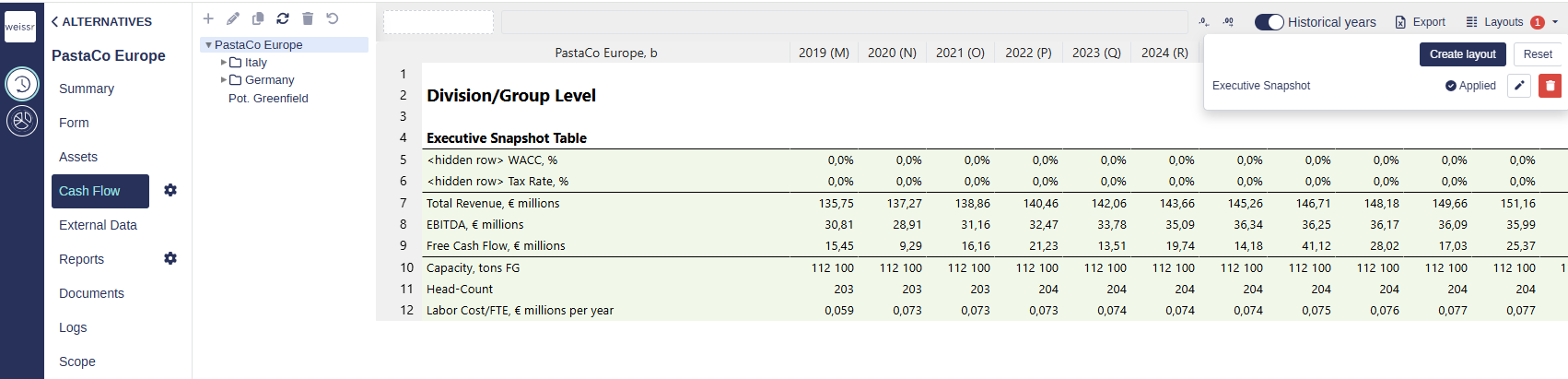
A new "Save and apply" action in the layout editor
Applies layout changes instantly from the editing popup
Removes the need to return to the layout list to apply updates
💡 Why it matters
These improvements make layout management smoother and ensure you always export the model with the correct layout logic applied.
Show delta values with flexible anchor selection
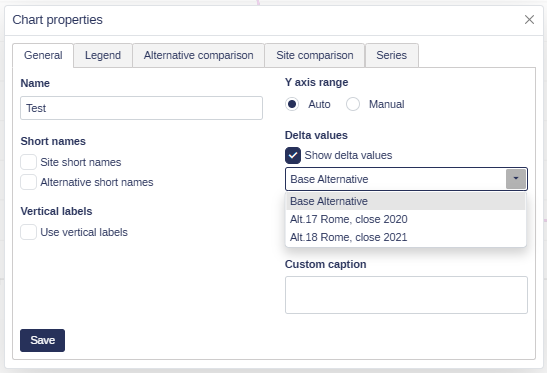
Comparative reporting is now more flexible. When the Base Alternative is not visible, you can choose any visible alternative as the delta baseline.
📍 What’s new
Users can select any visible alternative as the delta-to anchor when the Base Alternative is not included
A dropdown now lists all alternatives visible in the chart, making the anchor selection clear and intuitive
🧠 Insights
If the Base Alternative is present, it is automatically selected as the default delta-to anchor.
If the Base Alternative is not present, the first visible alternative is automatically selected as the anchor when the chart is created.
If the currently selected anchor is removed from the chart, delta settings are removed to avoid incorrect calculations.
The dropdown always shows only the alternatives currently visible in the chart, ensuring the anchor choice is always valid and meaningful
Common platform improvements
Ad hoc alerting
Ad-hoc alerting introduces a simple way for admins to share updates directly inside Weissr. Two new sections are available in Administration → Notifications: Ad hoc notifications and Banners. These tools help ensure users see important messages at the right time, right where they work.
Ad hoc notifications
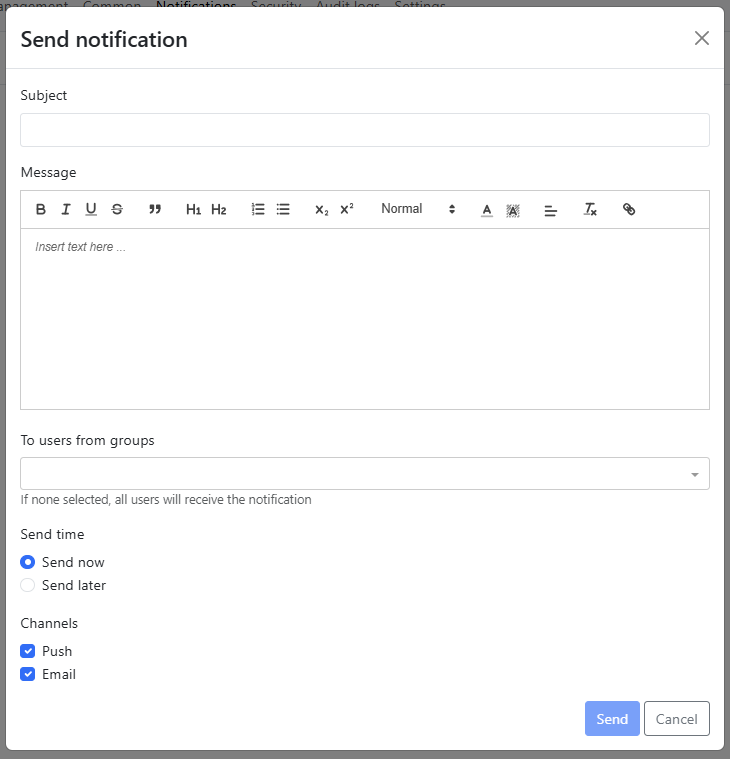
Creating a notification is done through a simple form with a subject and a rich-text message body. You can choose push, email, or both, and scheduled messages can be edited, cancelled, or sent early at any time before delivery.
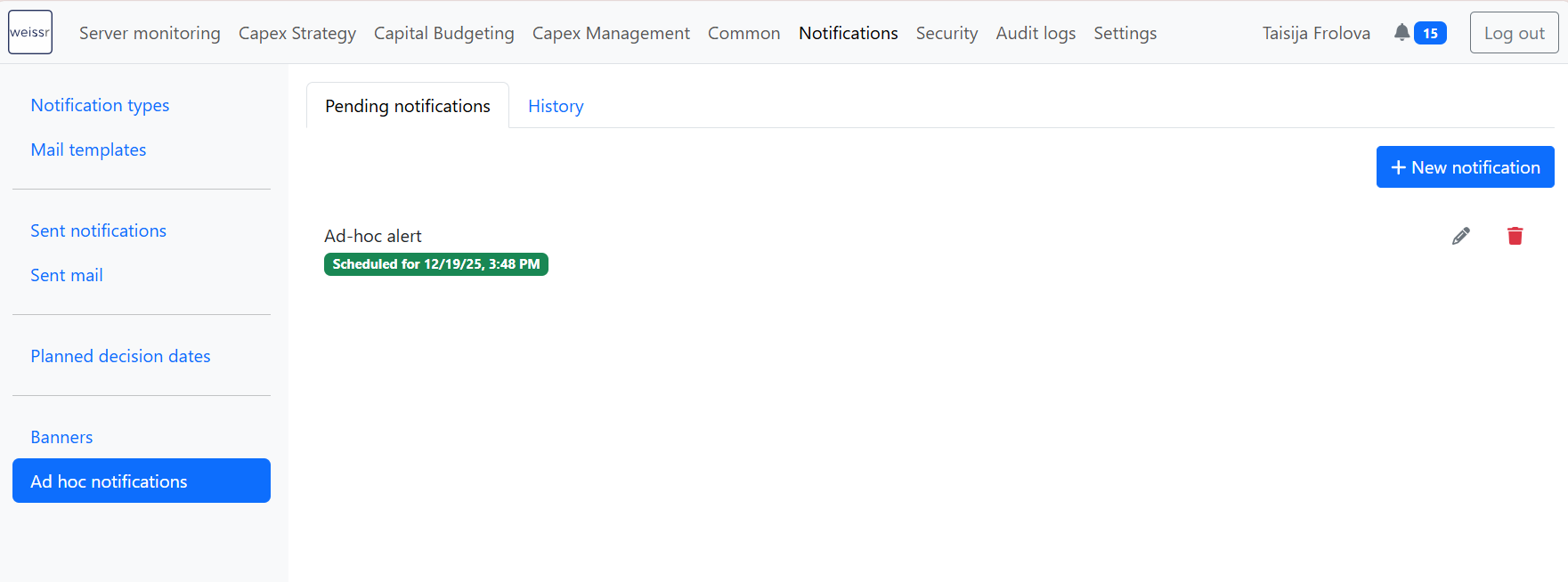
Delivered notifications appear in Sent notifications and Sent mail for future reference.
📍 What’s new
New Ad hoc notifications section under Administration → Notifications
Send alerts immediately or schedule them for a later time
Compose messages using a summary and rich-text body
Choose notification type: push, email, or both
Edit, cancel, or execute scheduled alerts
All delivered alerts appear in the existing sent lists
👉 More information about ad-hoc notifications
Banners
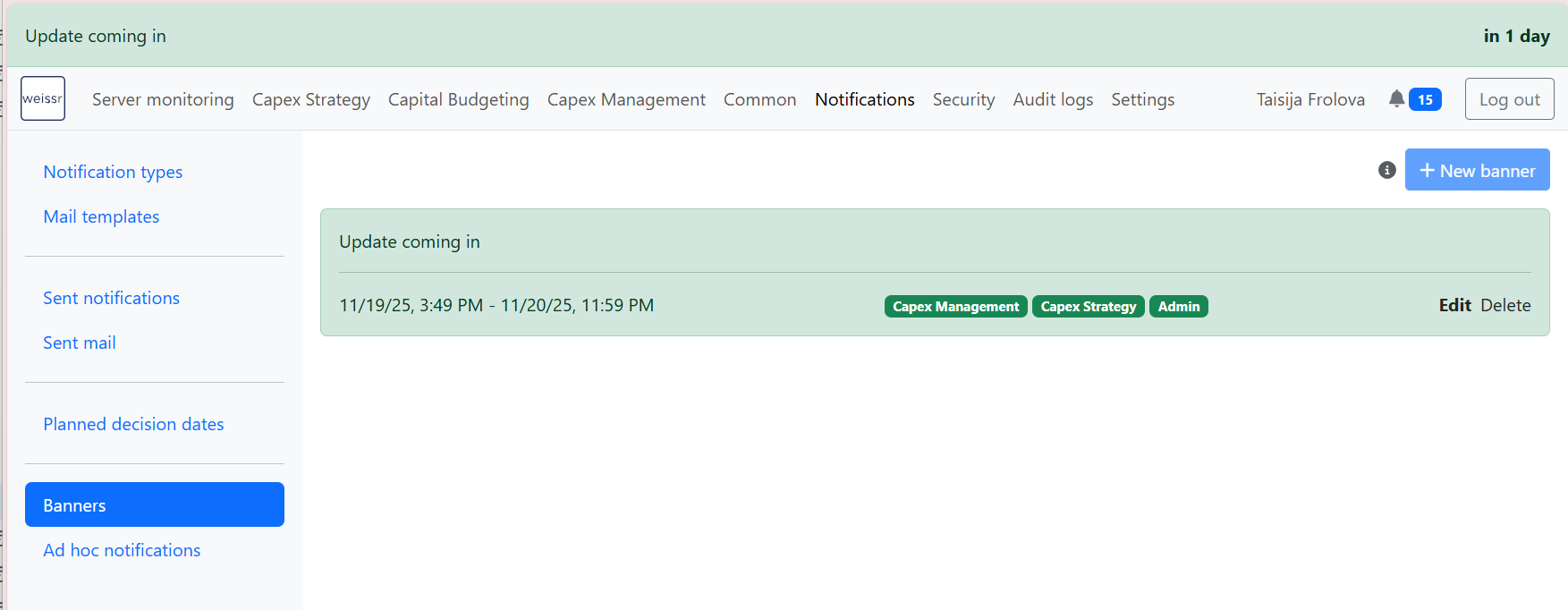
Use Banners to place high-visibility messages at the top of selected Weissr applications. Banners are ideal for ongoing updates, timelines, or important announcements users should see immediately.
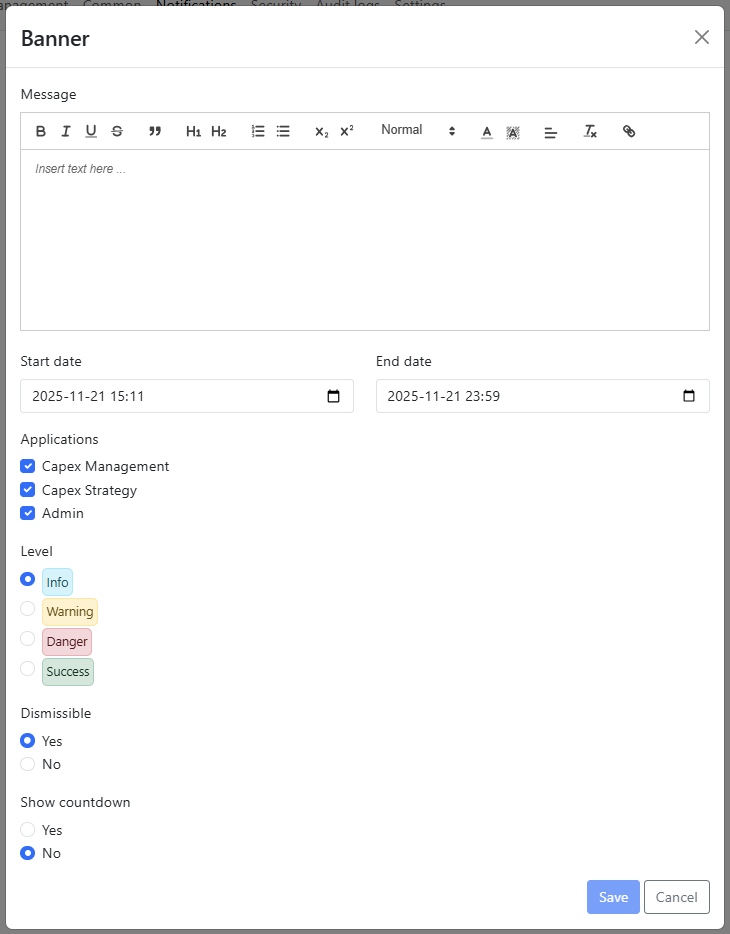
Banners can be created with start and end times, a style (Info, Warning, Danger, Success), dismissible behavior, and optional countdown indicators.
Once active, banners appear at the top of the selected application and remain visible for the defined period.
📍 What’s new
New Banners section under Administration → Notifications
Create visible banners with configurable start and end times
Choose styles like Info, Warning, Danger, or Success
Make banners dismissive or fixed
Optional countdown display for time-based events
Jira Service Desk Feedback widget integrated into CM & CS
Users can now submit support requests directly from inside Capex Management and Capex Strategy without leaving the application.
A new “Contact support” option is available under the question-mark icon in the dark-blue navigation bar.


Standardized icon order in unified navigation menu
To deliver a consistent navigation experience across CM and CS, the dark-blue bottom menu has been reorganized and cleaned up.