Personal User Settings
As a user of Weissr, you have the ability to personalize several key settings to tailor the application to your preferences. These settings control how financial data, language, and currency are displayed, ensuring that the interface aligns with your local conventions and organizational requirements.
Key customization options include:
How decimals and thousands separators are formatted
Your preferred language for the application
The default currency for viewing financial data
The theme and appearance of the application, including dark mode
By adjusting these settings, you can enhance your experience and make the data easier to understand and manage. Below is a detailed guide to configuring your personal user settings.
Changing the theme and appearance NEW IN 5.3.7
You can choose how Weissr looks. The Weissr theme is the new look and comes in light and dark. The Classic theme is the look from before and is only available in light.
Click your avatar (the circle with your initials) in the navigation bar.
Under Theme, select Weissr or Classic.
If you selected Weissr, choose an option under Appearance:
Light: light backgrounds with dark text. This is the default.
Dark: dark backgrounds with light text.
Auto: follows your computer's light or dark setting and switches when that setting changes.
The change applies straight away, and a check mark shows which option is selected. When you select Classic, the Appearance options are hidden. If you later switch back to Weissr, the appearance you used last is restored.
Your theme is saved in your web browser, not in your Weissr account. If you use Weissr on another computer or in another browser, you choose your theme there separately.
The first time you sign in after the update, a message next to your avatar points you to the new theme options. Click Got it to close it.
⚠️ Warning: The Classic theme will be removed in a later version.
Changing the theme in Administration
In Administration and on the application selection page, click the Theme button (the half-filled circle icon) at the top of the page. It has the same Theme and Appearance options.
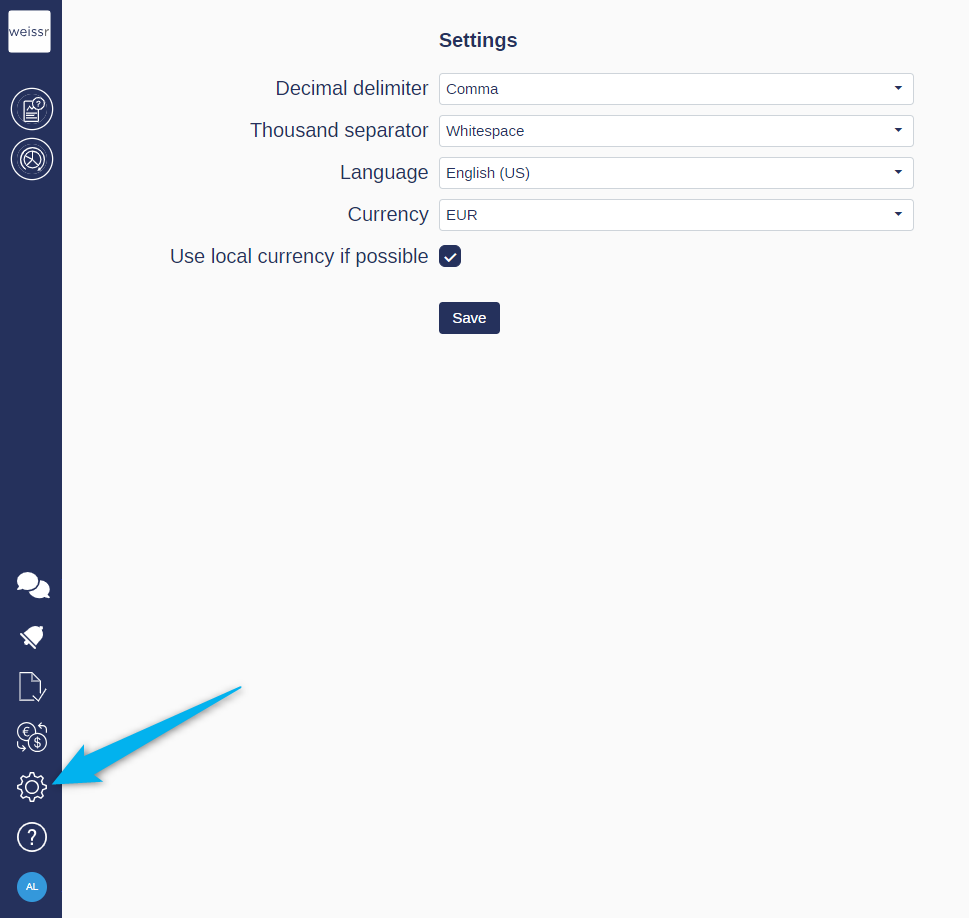
Display Settings
In Display Settings, you can customize how numbers are formatted across the platform:
Decimal Delimiter: You can select either a dot (.) or comma (,) as the delimiter.
Thousand Separator: You can choose from a dot (.), comma (,), whitespace, or select none to omit the separator.
Language Settings
Weissr supports multiple languages. Currently, the available languages are:
English (US)
English (GB)
Swedish
German
French
Spanish
Portuguese (BR)
Currency Settings
Currency settings determine the default currency in which all totals are displayed. The currency options available to you depend on your organization's configuration within the application.
Use Local Currency if Possible (Checkbox):
If checked, all Request Lists (including the Capex Management Investment Plan) will display amounts in local currency.
If unchecked, all Request Lists (including the Capex Management Investment Plan) will display amounts in your user-defined currency.
The local currency is always used in:
Requests (all tabs, grids, charts, and history of requests)
The Budget Investment Plan for non-aggregated, editable data
Regardless of the "Use Local Currency if Possible" setting, the user currency is used in:
All summaries
Totals (aggregated data)
Dashboards, including budget and request charts