Logs
The request logs let you view the full history of changes made to a project. This includes edits to project details, financials, and planned milestones. They help maintain transparency by capturing what was changed, when, and by whom.
Overview
The logs are accessible from the Log tab within a request. This tab is divided into up to six sub-tabs, each focusing on a specific area of the project. These tabs may have different names depending on your organization’s terminology.
Log tab sections
Request form: Displays changes made to any fields within the investment form or through Power Mode, including changes to calculated values.
Expenditures: Shows all updates made to expenditure values (capex and opex).
Investment model: Records changes made in the investment model.
Planned dates: Tracks all adjustments to planned dates typically set during decision-making processes.
Contingency: Tracks every change to the starting contingency and to contingency drawdown items. NEW IN 5.3.7
Progress: Tracks every change to planned and actual progress entries. NEW IN 5.3.7
📌 Note: The Contingency and Progress tabs are only available when the Capex report feature is enabled for your organization. The Progress tab is not shown on additional requests.
How the logs work
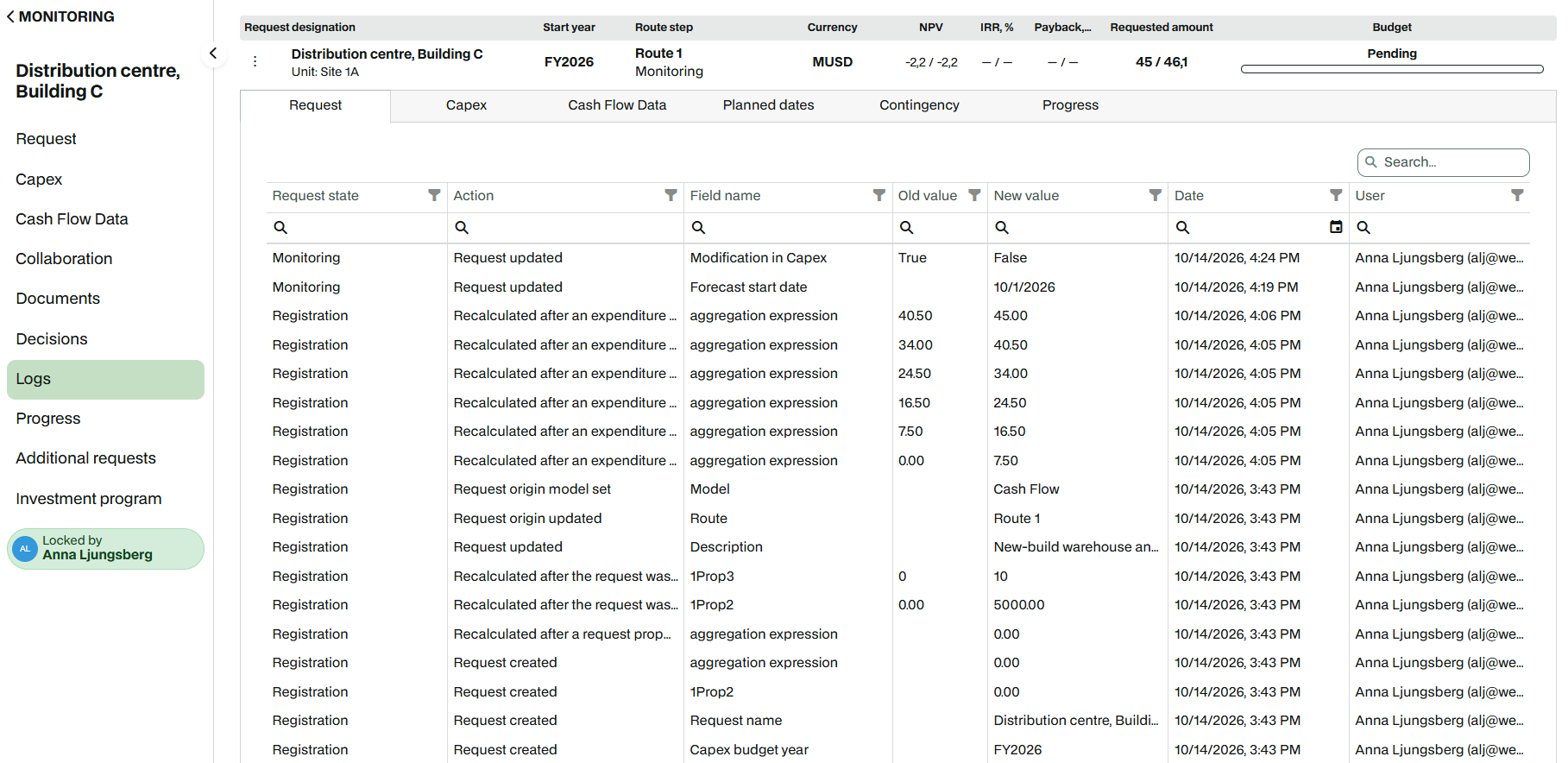
By default, logs are displayed in reverse chronological order (from newest to oldest), so the most recent change is at the top. Each entry in the log captures a snapshot of what was changed, providing a clear and traceable history of updates made to the project.
The specific details included in each log entry can vary depending on which tab you're viewing (request, capex, cash flow data, planned dates, contingency, or progress), but typically include the following:
State: The project state at the time the change occurred
Field name: The name of the field that was modified (when applicable)
Action: The type of change that was made (e.g., field updated, value added). The Request form tab now also has an Action column; for calculated values it shows what caused the recalculation. NEW IN 5.3.7
Old value: The value before the change
New value: The value after the change
Date: When the change was made
User: The user who made the change
Calculated value changes NEW IN 5.3.7
When Weissr recalculates a calculated property (a property with an expression) and the stored value changes, the change is logged in the Request form tab. Each entry shows the old value, the new value, the date, the user, and the cause of the recalculation in the Action column. This covers calculated values on both requests and expenditure lines, for money and non-money properties.
Calculated value actions
Action | Logged when |
|---|---|
Recalculated after a request property edit | A user edits a request property. |
Recalculated after an expenditure request data edit | A user edits expenditure data. |
Recalculated after an expenditure request was created, copied or moved | An expenditure line is created, copied or moved. |
Recalculated after the request was created | A request is created. |
Recalculated after the request was copied | A request is copied. |
Recalculated after a request transition | A request moves to another state. |
Recalculated after an actuals import | An actuals import runs. |
Recalculated after a transactional-data import | A transactional data import runs. |
Recalculated after a request bulk import | A request bulk import runs. |
Recalculated after a period close | A period is closed. |
Recalculated after the forecast start date moved | The forecast start date moves. |
Recalculated after an expression change on a property meta | An administrator changes the expression of a calculated property. |
Recalculated by the admin recalculate-all action | An administrator runs recalculate all. |
Recalculated after budget approval | A budget is approved. |
Recalculated after budget unapproval | A budget approval is withdrawn. |
Recalculated after a budget change | A budget is changed. |
Recalculated after a model or cash-flow edit | The investment model or cash flow data is edited. |
Recalculated after a currency or composite-property recalculation | Currency values or composite property values are recalculated. |
📌 Note: The calculated value actions are shown in English, whatever language you have selected.
How calculated value entries behave
User: The user whose action started the recalculation. For imports and scheduled jobs, this is the configured integration or system user. If no user can be identified, the User column is empty.
One triggering action on one request gives one log entry, which holds all values that changed.
A recalculation that produces the same value as before is not logged.
Calculated values on expenditure lines are also shown in the Request form tab.
Money values are logged in the request currency. Recalculated values in other currencies do not get their own entries.
If a calculation fails, the new value is logged as blank.
📌 Note: Calculated value history starts when your installation is upgraded to 5.3.7. Earlier changes are not added afterwards. Values produced by the request-level aggregation rule and values set by the investment model are not logged.
Contingency log NEW IN 5.3.7
The Contingency tab lists every change to the starting contingency and to the contingency drawdown items of a request. Contingency changes only appear in this tab, never in the other log tabs.
Columns: Item, Action, Field name, Old value, New value, Date, User. The logged fields are Starting contingency, Label, Amount, Type and Date. Type values are Overspending, Saving and Provision. Rows for the starting contingency have an empty Item cell, because the starting contingency belongs to the request and not to a drawdown item.
Contingency log actions
Action | What is logged |
|---|---|
Created | An item is added. One row per field (Label, Amount, Type, Date), with an empty old value. |
Updated | An item field or the starting contingency changes. One row per changed field. Changes to the starting contingency are always Updated, also when the value is first entered or removed. |
Deleted | An item is removed. One row per field, with the old value kept and the new value empty, so you can see what the item was when it was deleted. |
Progress log NEW IN 5.3.7
The Progress tab lists every change to the monthly planned and actual progress entries of a request. Progress values are shown with two decimals.
Columns: Action, Field name, Month, Old value, New value, Date, User.
Progress log actions
Action | What is logged |
|---|---|
Created | A progress value is entered for a month. |
Updated | A progress value for a month is changed. |
Deleted | A progress value for a month is removed. |
Copied from planned | The request gets final approval and the planned progress values are copied. |
The progress cut-off date that is set at final approval is also logged, with the field name Cut-off date.
Filtering and searching
You can filter and search the log entries using the column headers or the search bar to quickly locate specific changes. This makes it easier to track individual updates, investigate changes, or audit project activity over time.