Export of Cash Flow Model
Exporting Cash Flow Models is an essential activity in Capex Strategy. When exporting a Cash Flow Model, the system displays a pre-export dialog that contains all export options and layout selections. This ensures full transparency over which data and layout configurations are included in the export. This page describes all functionality related to exporting a Cash Flow Model.
Understanding Layouts in CFM
Layouts control how data appears inside the Cash Flow Model. A layout can:
hide or reveal specific data
filter the displayed content
adjust grouping or structural presentation
influence how values and nodes appear
Layouts may be applied at the current node or inherited from parent nodes. Because applied layouts also affect exported data, the system provides clear visibility and control to ensure users understand whether the view is filtered.
For more information about layouts, please read here.
Export Settings
To export your Cash Flow Model, click on the “Export” button in the top right corner.
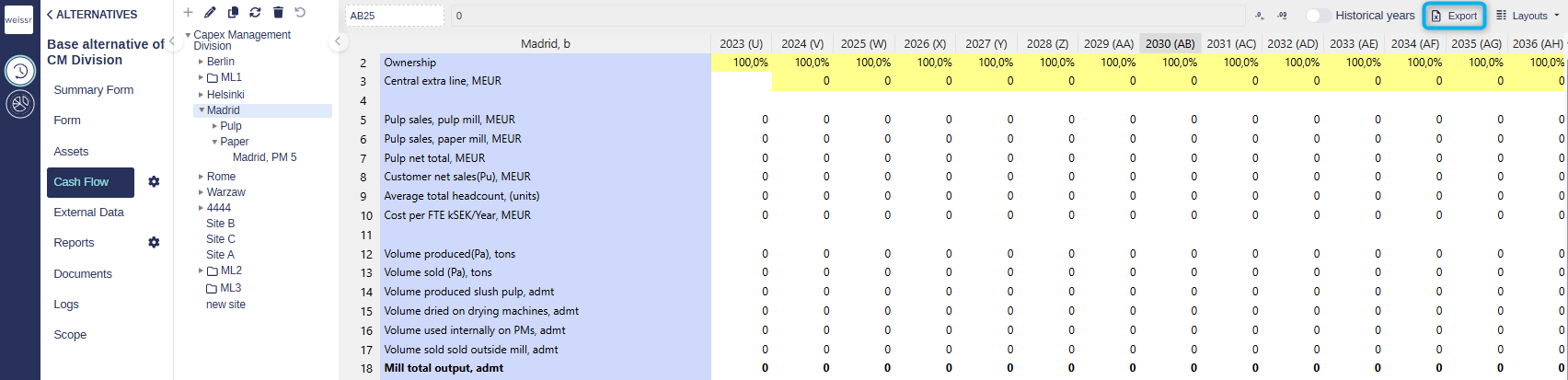
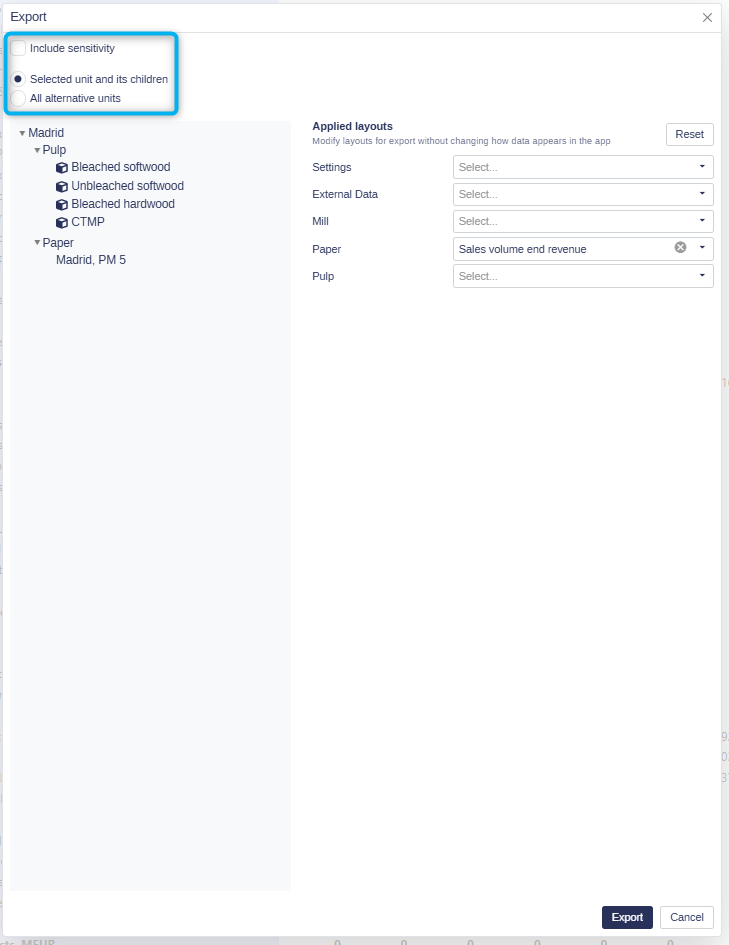
Once you have clicked on this button, a pop-up will appear. Here, you choose the settings for your export. A checkbox allows users to choose whether sensitivity data should be included in the export.
Include Sensitivity & Selecting Units for Export
A checkbox allows users to choose whether sensitivity data should be included in the export.
Selected unit and its children
Exports the currently selected unit and all child units.
All alternative units
Exports all units belonging to the current alternative.
When this option is selected, the top node of the alternative is used as the root node for the export.
After selecting an option, the model structure is visualized as a tree so users can confirm the export scope.
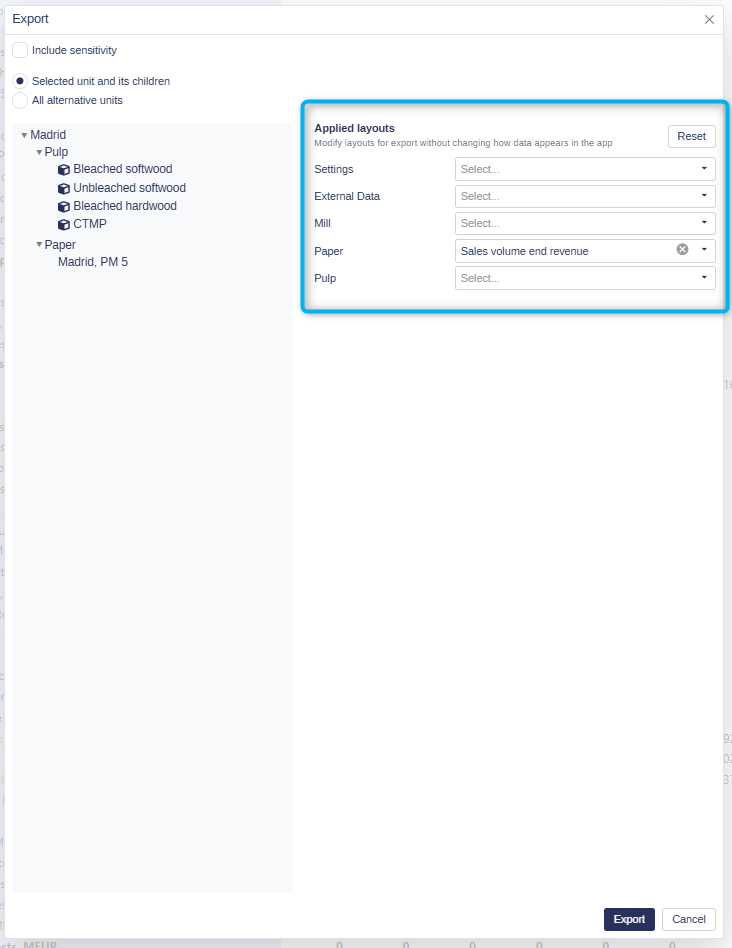
Applied Layouts in the Export
The export dialog includes a section that displays all layout groups relevant to the selected export scope. This allows users to control how layouts affect the exported data.
What Appears in this Section
The applied layouts section includes:
All tree unit types included in the selected export scope
Settings layouts
External data layouts
Settings and External data layouts are always available regardless of the chosen node scope.
Layout Behaviour in the Export dialog
Layouts that are currently applied in the application appear pre-selected
Users can change the layout used for export
Users can remove the layout selection
Users can select a layout that is not applied in the application
The Deselect all layouts option removes all layout selections at once
These selections control which layouts influence the exported file.
Export-Only Effect
Changing layout selections in the export dialog does not alter how the data appears inside the application.
The choices made here apply to the current export action only.
Layout Information in the Exported Excel File
If the export includes layouts, the exported Excel sheets contain the name of the layout in the first row of the caption column.
This identifies the layout that shaped the exported sheet.
Permissions and Access
Layout visibility and node availability in the export dialog follow the user’s node-based access permissions.
Users only see layout information and structures for nodes they have permission to access.