Project contingency drawdown
Project contingency drawdown lets you record the contingency a project carries directly on the Capex Management request and follow how it is used. You enter a starting contingency and add a drawdown item for each overspending, saving or provision. Weissr calculates the remaining contingency and shows the whole movement as a waterfall chart in the request's charts area. Every change is kept in a Contingency log, so you can show how the reserve developed over time without keeping a separate spreadsheet.
Contingency drawdown record NEW IN 5.3.7
A contingency drawdown record belongs to one request. All amounts are in the request's currency.
Starting contingency: the contingency amount the project starts with. You enter it manually.
Drawdown items: the events that use or replenish the contingency. Each item has a label, an amount, a type and a date. You add, change and remove them.
Remaining contingency: what is left of the contingency. Weissr calculates it from the starting contingency and the items. You cannot enter it.
📌 Note: Project contingency drawdown is unrelated to the contingency pools and draws in Capital Budgeting, and to the Miscellaneous/Contingency amount on budgets. It does not read or change data in either of them.
Contingency drawdown chart and Edit contingency dialog
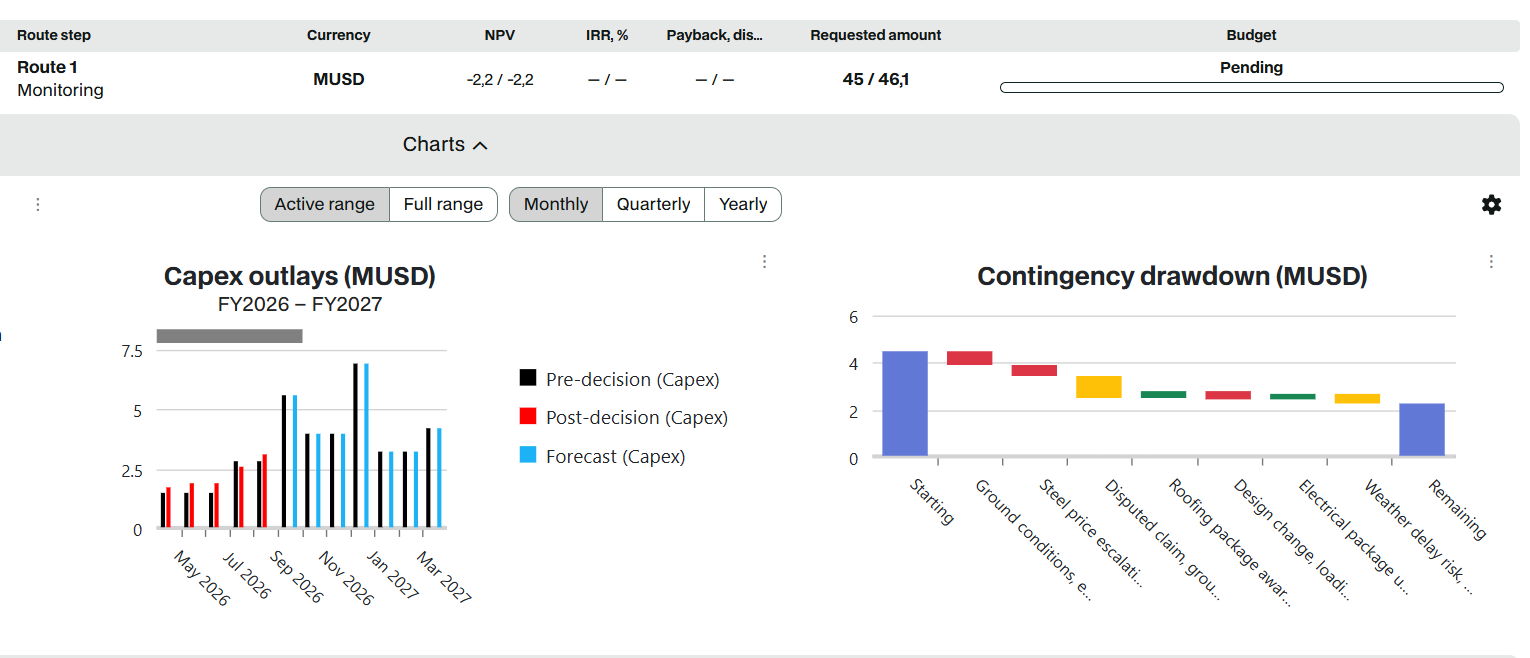
The Contingency drawdown chart is one of the charts in the request's Charts area, next to the standard charts and any custom charts your administrator has configured. The charts area shows up to three charts at a time. Use the arrows in the chart slider to reach the Contingency drawdown chart.
To enter or change the contingency, click the gear icon (Edit contingency) in the chart header. This opens the Edit contingency dialog.
🔧 Configuration: Project contingency drawdown is off by default. Contact Customer Success to switch it on for your environment. It is switched on together with project progress tracking. When it is off, the Contingency drawdown chart and the Contingency log tab are not shown.
Entering the starting contingency
Open the request and go to the Charts area.
In the Contingency drawdown chart, click the gear icon.
In Starting contingency, enter the amount the project starts with.
Click Save.
The label above the field shows the request's currency and money unit, for example Starting contingency (MUSD). Enter the amount in that unit.
After you save, the chart shows a Starting bar and a Remaining bar of the same height.
The starting contingency must be greater than zero. To remove it, use the clear button in the field. The clear button is only shown while the record has no drawdown items. Removing the starting contingency is different from entering 0: the record then has no starting contingency, and the chart shows no bars.
📌 Note: You must enter a starting contingency before you can add drawdown items. Until you do, the dialog shows "Record a starting contingency before adding drawdown items" and Add item is not available.
Managing drawdown items
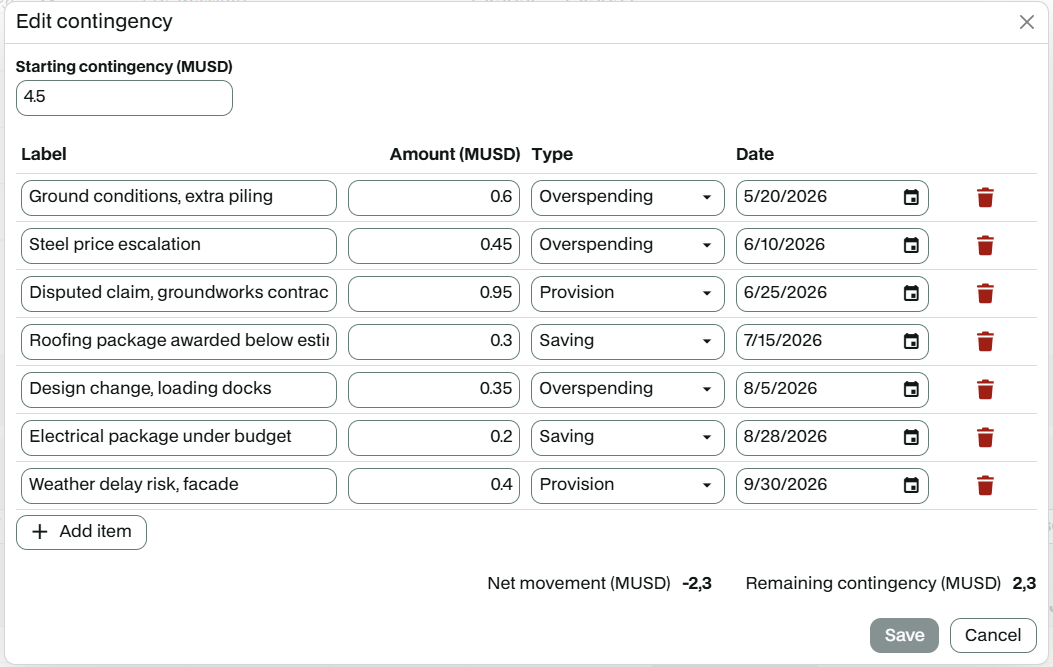
You manage all drawdown items in the Edit contingency dialog. When the record has a starting contingency but no items yet, the dialog shows "No drawdown items recorded".
Adding a drawdown item
In the Contingency drawdown chart, click the gear icon.
Click + Add item below the items table. A new row appears at the bottom of the table, ready for you to type the label.
Fill in Label, Amount, Type and Date.
Add more items if needed.
Click Save.
New rows stay at the bottom of the table while you work. After you save, the items are sorted by date.
While you edit, the bottom of the Edit contingency dialog shows two read-only values. Both update as you type, before you save, and use the request's currency, money unit and your number format:
Net movement: the sum of all items with their types applied.
Remaining contingency: the starting contingency plus the net movement. This is the same value as the Remaining bar in the chart.
📌 Note: The remaining contingency can go below zero. Weissr does not stop you from saving items that use more than the available contingency. Keep an eye on the Remaining contingency value in the dialog.
Changing or removing a drawdown item
Change an item: edit its fields directly in the items table and click Save.
Remove an item: click the trash icon (Remove drawdown item) on its row and click Save.
Close without saving: click Cancel. Save is only available once you have made a change and every field is valid.
📌 Note: Save and + Add item stay disabled while any row has an empty or invalid field. A field you skip is not marked as required until you have typed in it and removed the value again. If Save stays disabled, check that every row has a Label, an Amount and a Date.
Drawdown item fields
Field | What to enter | Rules |
|---|---|---|
Label | A short name for the event, for example "Disputed claim, civil works". | Required. Up to 255 characters. Spaces alone do not count as a label. |
Amount | The amount of the event without a sign. The column header shows the request's currency and money unit, for example Amount (MUSD). | Required. Must be greater than zero. |
Type | Overspending, Saving or Provision. The type decides whether the amount reduces or adds to the contingency. | Required. New items start as Overspending. |
Date | The date of the event. The chart uses it to order the items. | Required. |
Item types
You always enter the amount without a sign. The type decides the direction. Wherever item amounts are listed, reductions are shown with a minus.
Type | Effect on the contingency | Bar color | Use it for |
|---|---|---|---|
Overspending | Reduces | Red | A budget transfer to an underfunded account. |
Saving | Adds | Green | A transfer back from an overfunded account. |
Provision | Reduces | Yellow | Expected overspending that has not happened yet, for example a disputed claim. |
Updating a provision when the risk changes
A provision always reduces the contingency. When the situation changes, edit the existing item instead of adding a positive provision:
The estimate changes: edit the amount of the provision.
The risk materializes: change the type of the item to Overspending.
The risk disappears: delete the provision, or record a Saving if money actually comes back.
The Contingency log keeps the old and new values of every change, so the history of the provision stays visible.
Remaining contingency calculation
Remaining contingency = starting contingency − overspending − provisions + savings
For example, a project starts with a contingency of 20. It then records an overspending of 0.4, a saving of 0.5 and a provision of 2:
Item | Type | Amount | Contingency after the item |
|---|---|---|---|
Starting contingency | 20 | 20 | |
Research | Overspending | −0.4 | 19.6 |
Development | Saving | 0.5 | 20.1 |
Claim, civil works | Provision | −2 | 18.1 |
Remaining contingency | 18.1 |
In this example, the net movement is −1.9.
Waterfall chart
The Contingency drawdown chart is a waterfall chart:
The first bar is Starting, the starting contingency, in blue.
Each drawdown item follows as its own bar, ordered by item date. Items with the same date appear in the order they were added. Each bar starts where the previous bar ended and moves down or up by the item amount.
The last bar is Remaining, the calculated remaining contingency, in blue.
Bar colors follow the item type: red for Overspending, green for Saving and yellow for Provision. Amounts are shown in the request's currency, using the money unit configured for your environment, for example millions (M). Hover over a bar to see its amount.
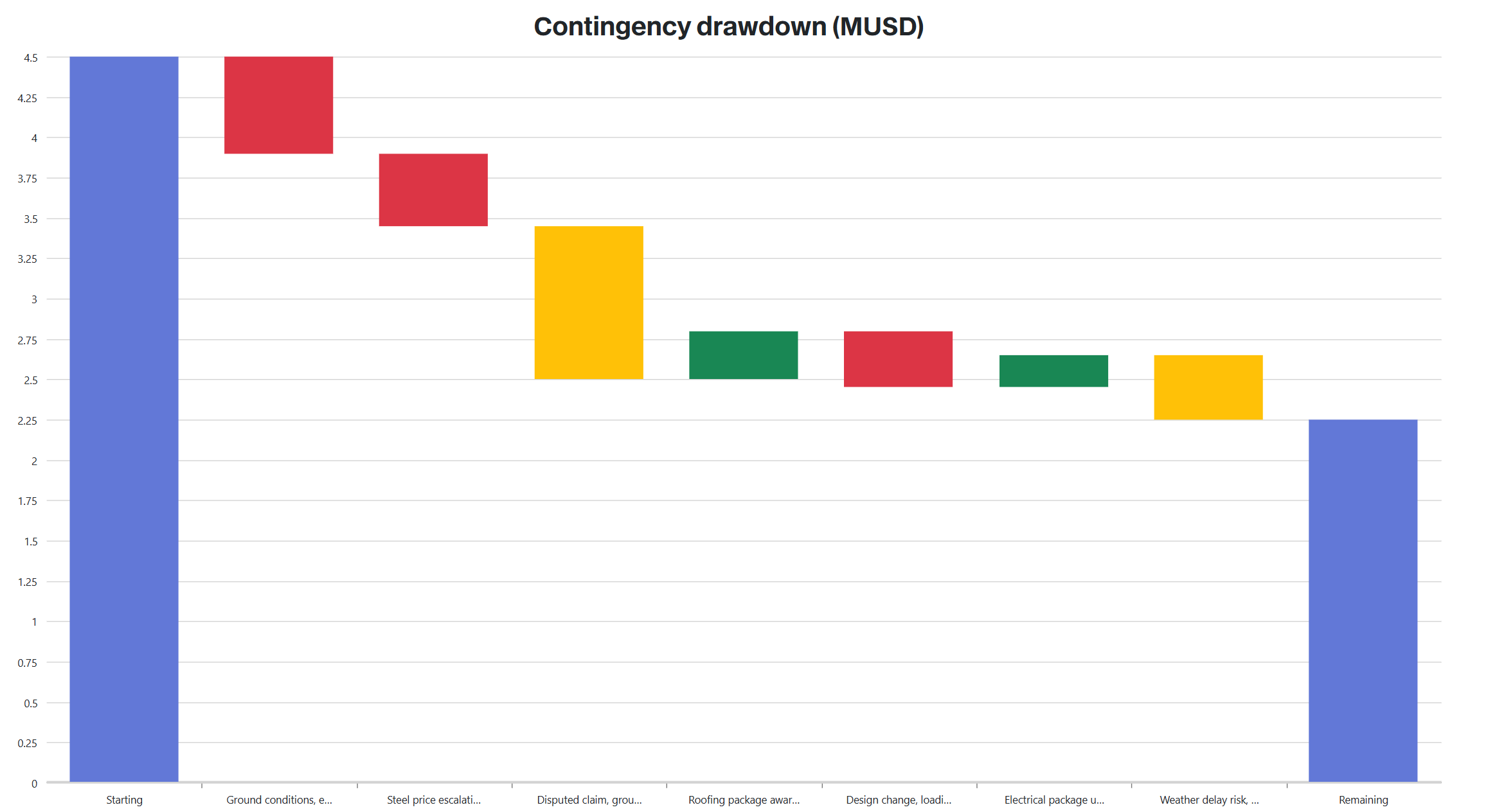
Chart menu
Like the other request charts, the Contingency drawdown chart has a chart menu:
Export: print the chart, or save it as PNG, PDF, JPEG or SVG, for example for a monthly project report.
Show labels: show or hide the amount on each bar. A checkmark shows when labels are on. Labels are hidden by default.
Fullscreen: open the chart in full screen. You can also double-click the chart.
Permissions and request states
Contingency editing follows the normal request permissions:
Users who can open the request can see the Contingency drawdown chart and the Contingency log.
Users who can update the request can see the gear icon and change the contingency. The gear icon is disabled while another user is editing the request.
The contingency stays editable in every request state, from draft to completed. Contingency events happen throughout a project, so the record is not locked at final approval.
One contingency record belongs to the request. It is shared across the request's decision versions, so you see the same record in every version.
Contingency log
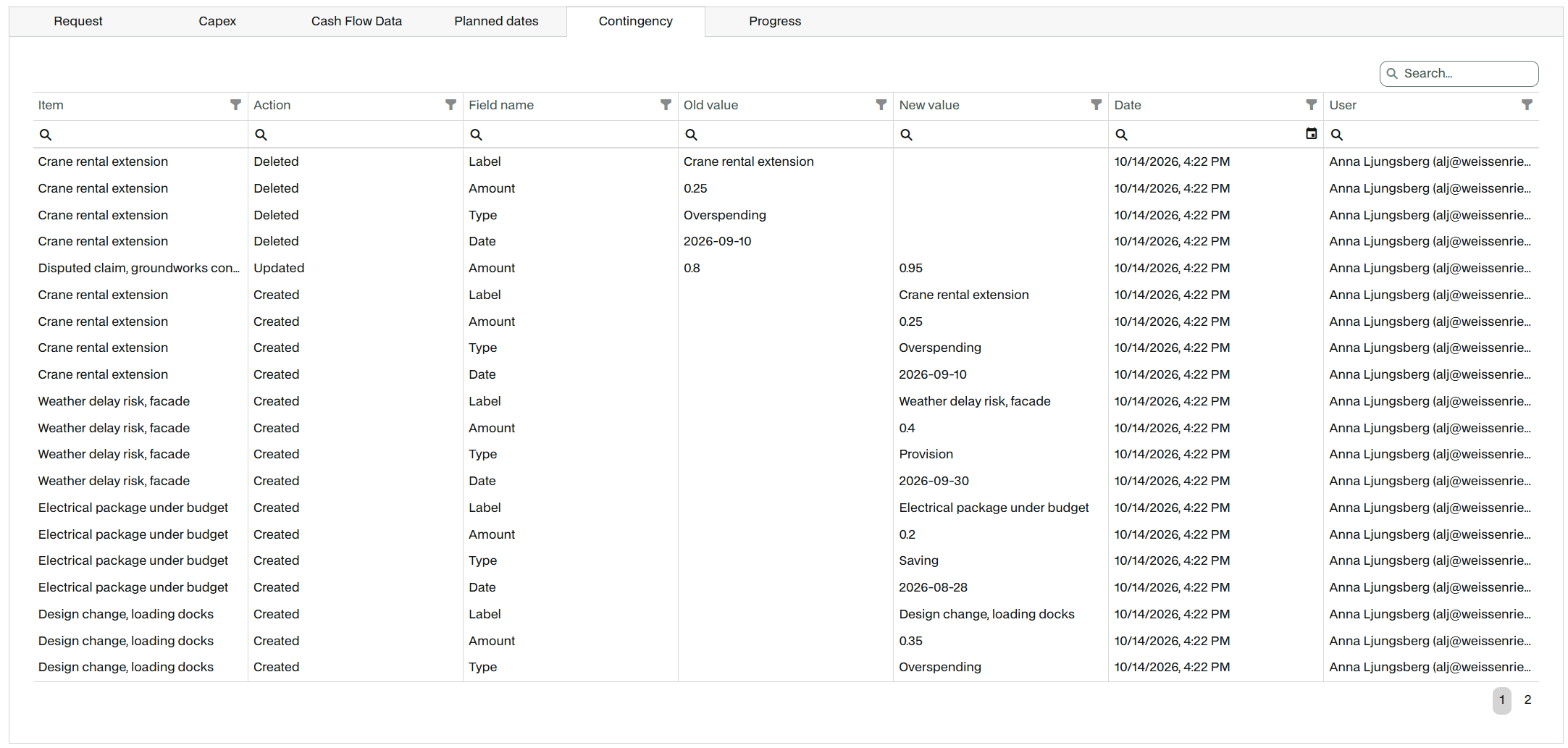
Every change to the contingency record is logged in the Contingency tab of the request's Logs submenu. The tab holds only contingency changes. They never appear in the other log tabs. The log works like the other log tabs: you can filter, search and sort the entries, and it is read-only.
Column | Content |
|---|---|
Item | The label of the drawdown item. Empty for changes to the starting contingency. |
Action | Created, Updated or Deleted. |
Field name | Starting contingency, Label, Amount, Type or Date. |
Old value | The value before the change. Empty when an item is created. |
New value | The value after the change. Empty when an item is deleted. |
Date | When the change was made. |
User | Who made the change. |
Amounts in the log are shown without a sign, because the log records the stored field values. The direction of an item is recorded in its Type entries.
Log actions
Created: a drawdown item was added. The log gets one entry per field (Label, Amount, Type and Date), with the old value empty.
Updated: a field of an item or the starting contingency changed. The log gets one entry per changed field. Changes to the starting contingency are always logged as Updated, also when the value is first entered or removed.
Deleted: a drawdown item was removed. The log gets one entry per field, with the old value kept and the new value empty, so you can see what the item was when it was deleted.
Not included in this version
Not included | What this means |
|---|---|
Export to the reporting database | Contingency items, the remaining contingency and the Contingency log are not included in the reporting database export. |
Locking after approval | The contingency is not locked at final approval or in any other request state. |
Limit at zero | Saving is not blocked when the remaining contingency goes below zero. |
Starting contingency from a property | The starting contingency is entered manually. It cannot be taken from an approved-amount property, and the contingency amounts are not available as request properties. |