Attachments and document templates
Attachments are how supporting documentation reaches a request: project plans, invoices, contracts and external investment models. Document templates run the opposite way. An administrator publishes a standard file, you download it, complete it outside Weissr, and upload the finished version back as an attachment. Document links are a third option: the file stays in Microsoft 365, SharePoint or OneDrive, and the request keeps a link to it. This page covers all three.
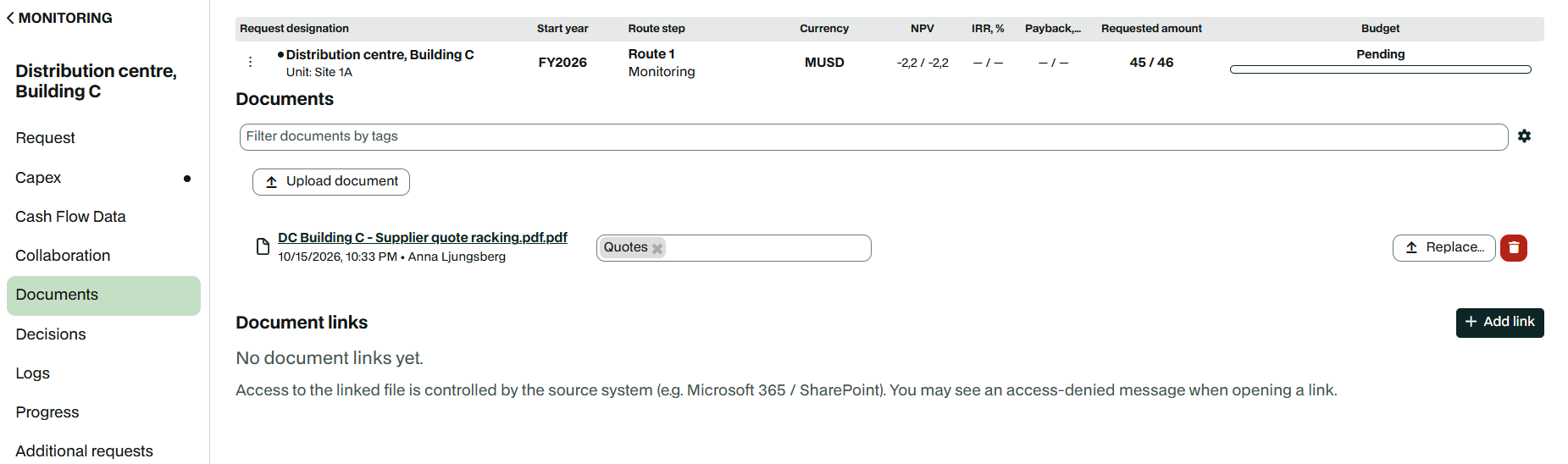
Adding an attachment to a request
Go to the Attachments tab in your request.
Click Upload attachment.
Choose the file you want to attach from your device.
Supported formats: Weissr supports a wide range of file types, including:
.pdf
.docx
.xlsx
.jpg
Tagging and filtering attachments
Tags let you categorise attachments along several dimensions, which makes the right document easier to find later.
To add tags
After uploading an attachment, click the Select tags field.
Choose one or more tags, for example "Environmental" or "Legal".
To filter attachments
Use the Filter attachments by type bar.
Select the tags you want to filter by to narrow down the files on display.
📌 Note: Creating new tags is permission restricted. If you cannot create the tag you need, ask your system administrator to add it.
Replacing or deleting an attachment
To replace an attachment
Click Replace next to the attachment.
Choose the new file. It takes the place of the existing one.
To delete an attachment
Click the trashcan icon next to the attachment.
Confirm the deletion.
⚠️ Warning: Deleting an attachment removes the file permanently. There is no undo.
External investment models
When an external investment model is used for advanced cash flow projections, the workbook follows the figures into Weissr automatically.
Each time investment model data is imported, the external Excel workbook is uploaded as an attachment.
You can open that attachment to see the underlying model data behind the figures shown in Weissr's investment model.
Imported Excel files are tagged automatically according to the state the project was in at the time of import:
Model Import Monitoring
Model Import Registration
This makes imported models easy to identify and track within the project.
Document templates on a request
A document template is a standard file your administrator has published, such as a business case form or an approval cover sheet. You download it, fill it in, and upload the completed version back as an attachment.
Templates appear under Templates at the top of the Documents tab of your request. Click the name to download. The file opens in a new tab or downloads to your device, depending on your browser.
📌 Note: The link shows the file name, not the template name your administrator gave it. A template set up as "Capital appropriation request form" may appear as appropriation-form.docx.
Which templates you see
A request shows the templates attached to the approval route step it is sitting on right now, and nothing else.
Templates on the Preparation step become available as soon as a route is assigned to the request.
When the request moves forward a step, the previous step's templates disappear and the new step's templates take their place.
If the current step has no templates attached, the section is empty. That is normal and does not mean anything is missing.
Templates are listed alphabetically.
💡 Tip: Download the template fresh each time rather than reusing a copy you saved earlier. Administrators can replace a template file at any point, and Weissr does not announce the change.
If a template you expect is not there, or a link downloads nothing, contact your administrator. Both usually mean the template has not been attached to the step you are on, or its file has not been uploaded yet.
Budgets have their own Documents tab, where templates work in a similar way but are chosen per budget rather than per workflow step.
🔧 Configuration: Administrators create document templates, upload their files and attach them to route steps and budgets. 👉 Document Templates
👉 Creating & Configuring Capital Budgets
Document links NEW IN 5.3.7
A document link saves a link to a Microsoft 365, SharePoint or OneDrive file on a Capex Management request. Your team keeps working in the file where it already lives, and the request always opens the current version instead of an uploaded copy that goes out of date.
Document links have their own section, Document links, at the bottom of the Documents tab, below the uploaded files. Each row shows the link title and the date it was added or last changed. Hover over the title to see the full URL. When a request has no links, the section shows "No document links yet."
💡 Info: Weissr stores only the title and the URL, never the file itself. Microsoft 365 opens the file and decides who can see it. Several people can edit the same file at once because they all open it in Microsoft 365, not in Weissr.
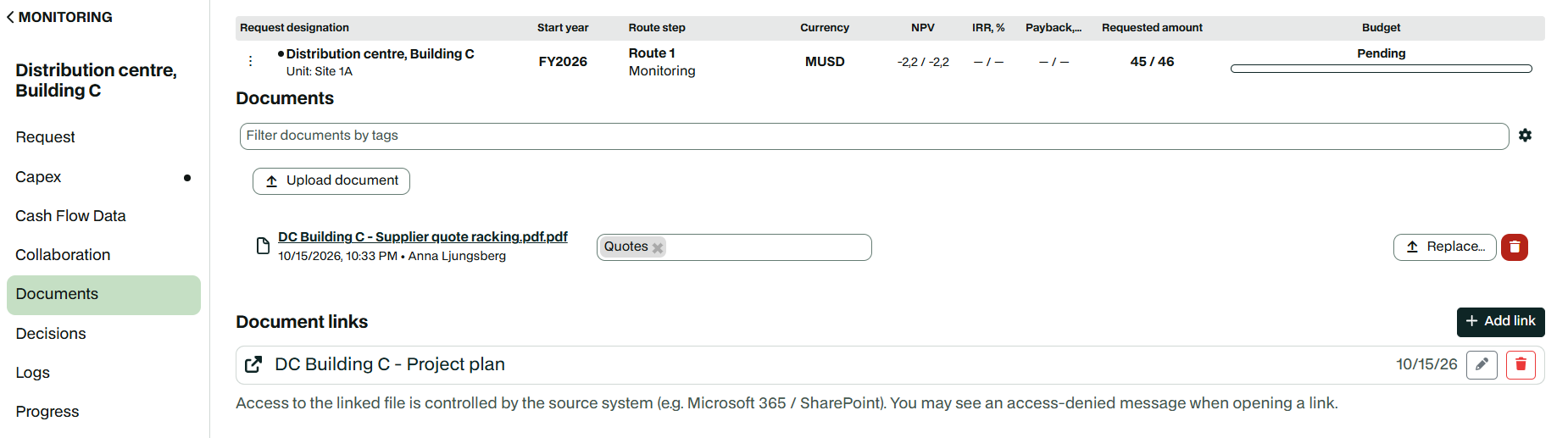
Adding a document link
Go to the Documents tab in your request.
In the Document links section, click Add link.
Paste the link to the file in Document URL.
Check the Title. If it was empty, Weissr fills it in from the URL when you leave the URL field.
Click Save.
Weissr builds the suggested title from the last part of the URL, without the file extension. For example, a link ending in Shared%20Documents/Budget%202026.xlsx gives the title "Budget 2026". Weissr never overwrites a title you have typed yourself.
📌 Note: SharePoint sharing links often do not contain the file name, so the suggested title can be a code rather than a readable name. Always check the title before you save. Weissr does not read the file name from Microsoft 365, so the title does not change if the file is renamed there.
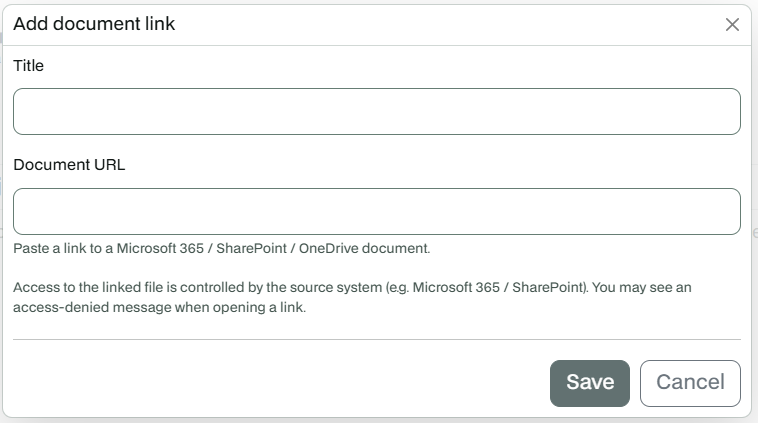
Supported links
Title: required, up to 200 characters.
Document URL: required, up to 2000 characters, starting with https:// or http://.
Sources: the address must be on sharepoint.com, office.com, office365.com, officeapps.live.com, office.live.com, onedrive.live.com or 1drv.ms.
Any other address shows "Only Microsoft 365, SharePoint or OneDrive links are supported." Google Drive, Box, Dropbox and internal file shares are not supported.
Opening a document link
Click the link title. The file opens in a new browser tab, and Microsoft 365 decides whether to open it in the desktop app or in Office for the web.
Access to the file is controlled in Microsoft 365, not in Weissr. If you do not have access, Microsoft shows an access-denied page. Ask the file owner to share it with you in SharePoint or OneDrive. Weissr shows the same reminder under the list of links and in the add and edit dialog.
Editing or deleting a document link
To edit a link
Click the pencil icon on the link row.
Change the title, the URL or both, and click Save.
To delete a link
Click the trashcan icon on the link row.
Click Delete to confirm.
📌 Note: Deleting a document link removes only the link from the request. The file in SharePoint or OneDrive is not touched.
Permissions for document links and attachments
Document links and uploaded attachments follow the same rules, based on your permission on the request's node.
Action | Required permission |
|---|---|
View document links | READ |
Add or edit a document link | EDIT |
Delete a document link | DELETE or EDIT |
Upload an attachment or a new version of one | EDIT |
Delete an attachment | DELETE or EDIT |
📌 Note: From 5.3.7, uploading an attachment or a new version of one requires EDIT permission on the request. If you could upload before and now get "access denied", ask your administrator to check your permissions.
Document links on locked or closed requests
You can still add, edit and delete document links on a locked or closed request. Attachments behave differently: their upload and edit controls are hidden once a request is locked or closed.
Limitations of document links
Weissr does not read file names, file types, versions or modified dates from Microsoft 365.
You paste a URL; you cannot browse or pick files from SharePoint.
Changes to document links are not shown in the request history. The Documents tab shows the date a link was added or last changed.
Document links are not included in the reporting export.
Document links exist only on Capex Management requests, not on budgets or in Capex Strategy.