Project progress tracking
Project progress tracking lets you record the physical progress of a project directly on the Capex Management request. You enter planned and actual progress as monthly percentages in the new Progress section, and Weissr shows them side by side on a progress S-curve. A cut-off date splits actual progress from forecast, and every change is kept in a Progress log. Progress lives next to the financial plan you already keep in the expenditure grid, so you no longer need a separate spreadsheet or scheduling tool to report how far the project has come.
Planned and actual progress NEW IN 5.3.7
Project progress tracking records how much of the project's physical work is done, month by month. It belongs to the whole request, not to a single Capex or Opex line.
Progress is kept on two rows:
Planned Progress: the progress the project expects to make each month. You enter it before the request reaches final approval.
Actual Progress: the progress the project really makes each month. It appears when the request reaches final approval, and you keep it up to date from then on.
You always enter the increment for a month, for example "the project moved 5 % in March". Weissr calculates the cumulative progress for you. All values are percentages.
📌 Note: An empty month means "not reported". It is not the same as 0 %. Enter 0 only when you want to report that no progress was made that month.
Progress section
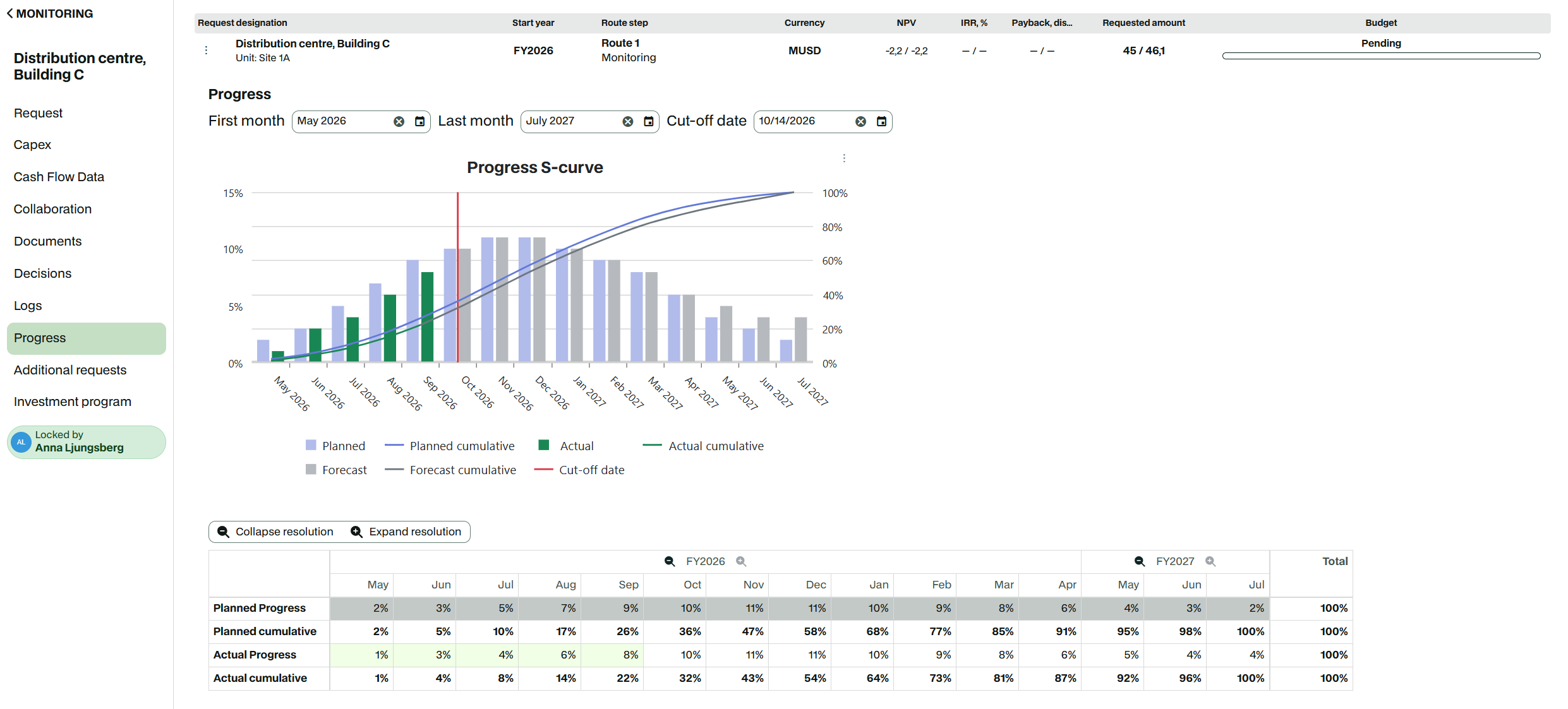
The Progress section is in the request navigation. It holds:
the controls at the top: First month and Last month for the reporting period, and the Cut-off date from final approval onwards
the monthly progress grid
the Progress S-curve chart
📌 Note: The Progress section is only available on main requests. Additional requests do not have a Progress section.
🔧 Configuration: Project progress tracking is part of the CAPEX report feature, which is off by default. Contact Customer Success to switch it on for your environment. When the feature is off, the Progress section and the Progress log tab are not shown.
👉 Learn more about project contingency drawdown
Progress grid layout
The progress grid looks and works like the expenditure grid.
The columns follow the request's analysis period, or the reporting period if one is set.
The grid opens in monthly view with the years expanded. You can collapse a year or quarter to see its total, and expand it again with the plus icon.
Each progress row has a calculated cumulative row directly below it, Planned cumulative and Actual cumulative, styled as totals rows.
A read-only Total column at the end of the grid shows how far each row has come.
After final approval, months before the cut-off month are highlighted in the same green as actuals in the expenditure grid.
You can only enter values in months. Collapsed quarters and years are read-only and show the sum of their months.
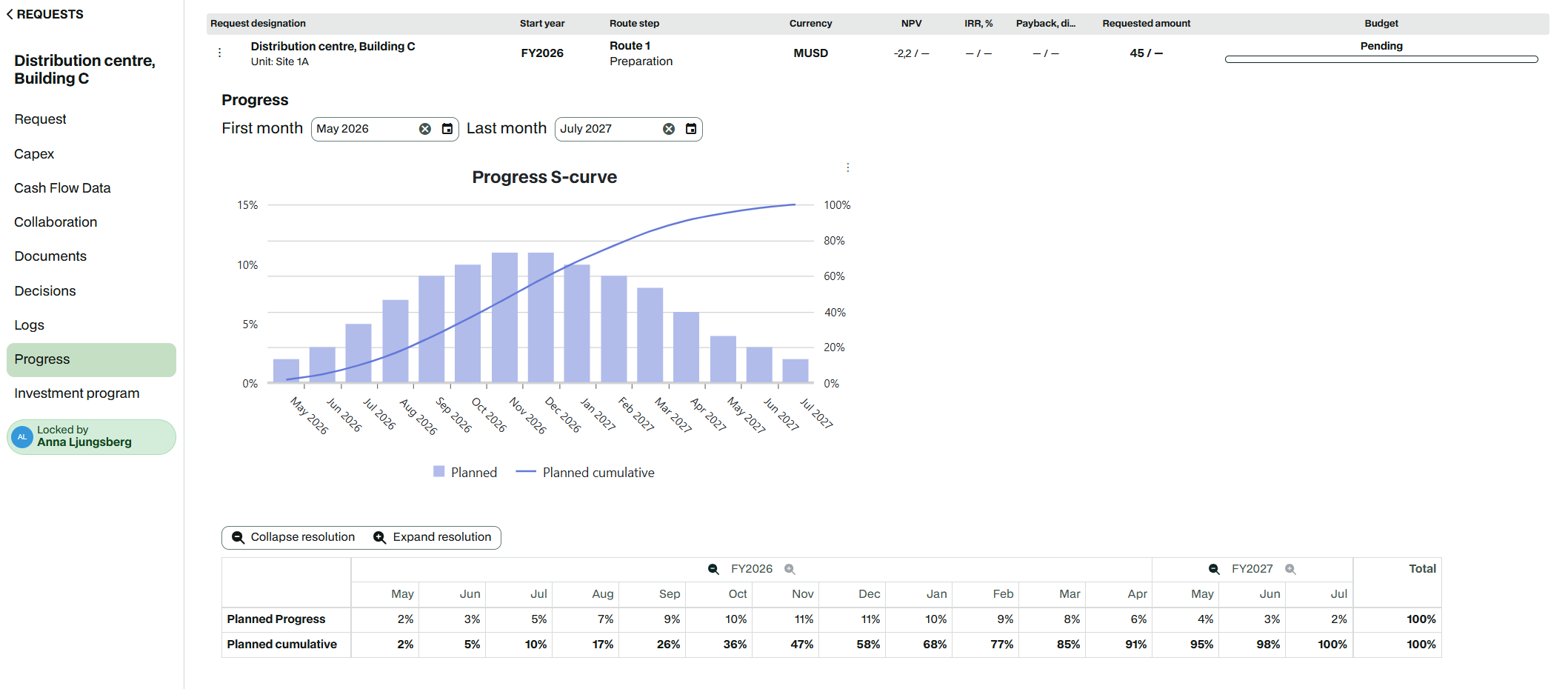
Entering planned progress
Open the request and go to the Progress section.
Click a month in the Planned Progress row.
Enter the progress you expect in that month as a percentage, for example 10.
Repeat for the other months.
The cumulative row and the Total column update when the value is saved. The progress S-curve updates at the same time.
Rule | What happens if you break it |
|---|---|
A month must be between 0 and 100 %. | The cell keeps its previous value and shows "Enter a value between 0 and 100 %". |
The total of a row cannot pass 100 %. | The cell keeps its previous value and shows "Total progress cannot exceed 100 %". |
The rules apply to both Planned Progress and Actual Progress. For example, if Planned Progress already adds up to 95 %, you can enter at most 5 in another month.
You can enter decimals, and the value is saved exactly as you enter it. The grid and the chart show one decimal, for example 12.6 for 12.567, and the full value appears when you edit the cell. The Progress log shows two decimals, for example 12.57.
Cumulative progress and totals
Each cumulative cell is the sum of all increments up to and including that month. The running total starts at the first month with a value and carries through empty months to the last month of the grid. Months before the first value stay empty.
For example, a project plans 10 % in January, 15 % in February, nothing in March and 20 % in April:
Jan | Feb | Mar | Apr | May | Total | |
|---|---|---|---|---|---|---|
Planned Progress | 10 % | 15 % | 20 % | 45 % | ||
Planned cumulative | 10 % | 25 % | 25 % | 45 % | 45 % | 45 % |
The Total column shows the sum of the increments in the progress row, and the last cumulative value in the cumulative row. Both numbers are the same.
In a collapsed quarter or year, the progress row shows the sum of its months, and the cumulative row shows the value of the last month.
The grid has no totals row. Adding Planned and Actual together would not mean anything.
Progress at final approval
When the request reaches final approval, the same transition that copies planned expenditures to actuals also handles progress:
Every Planned Progress value is copied into the same month of the Actual Progress row, as the starting point for actual reporting.
The Planned Progress row is locked. It is read-only for every user, including superusers, for all months.
The Cut-off date is set to the final approval date.
The Actual Progress row and its cumulative row appear in the grid, and the Actual and Forecast series appear in the chart.
Locked Planned Progress cells look like locked planned expenditure values.
⚠️ Warning: Planned Progress cannot be changed after final approval in this version. Check the plan carefully before the request is finally approved.
Changing Actual Progress never changes Planned Progress, so the original plan always stays visible as the reference.
Updating actual progress
After final approval, you report actual progress in the Actual Progress row.
Open the request and go to the Progress section.
Click a month in the Actual Progress row.
Enter the progress the project made in that month, or change the copied planned value.
When you have reported a month, move the Cut-off date forward so that the month counts as actual.
Every month in the Actual Progress row inside the reporting period stays editable for users who can update the request, both before and after the cut-off date. The same validation rules apply as for Planned Progress.
Cut-off date
The Cut-off date splits the Actual Progress row into actuals and forecast. It is shown in the Progress section controls from final approval onwards, and is hidden before that.
At final approval, the cut-off date is set to the final approval date.
Users who can update the request can change the date or clear it. Users who can only view the request see it read-only.
Every change to the cut-off date is recorded in the Progress log, including the date set at final approval.
Months | Treated as | Actual Progress cell | Chart bars and line | Reporting database export |
|---|---|---|---|---|
Before the cut-off month | Actual | Green highlight | Green |
|
The cut-off month and later | Forecast | Standard cell | Grey |
|
The grey row in the grid is Planned Progress, which is locked after final approval. Forecast months in the Actual Progress row are not grey in the grid. Grey is only used for the Forecast bars and line in the chart.
For example, a request is finally approved on 15 March 2027, so the cut-off date is 15 March 2027. January and February 2027 count as actual, and March 2027 onwards counts as forecast. At the start of June, after you have reported progress for March to May, you change the cut-off date to 1 June 2027. March to May then count as actual too.
Changing the cut-off date only changes how the months are shown and exported. It does not lock or move any value.
If the cut-off date is cleared, every month in the Actual Progress row counts as forecast, and the chart shows no cut-off line.
The cut-off date can lie outside the reporting period.
📌 Note: The forecast start date and the actuals import do not affect the Progress section. Only the cut-off date splits actual progress from forecast.
📌 Note: Requests that reached final approval before the upgrade to 5.3.7 have no cut-off date. All their Actual Progress counts as forecast until a user sets one.
Reporting period
By default, the grid and the S-curve cover the request's full analysis period. You can narrow them to a reporting period, for example the construction phase of the project.
In the Progress section, choose a month in First month.
Choose a month in Last month.
Each choice is saved as soon as you make it. To remove a limit again, use the clear button in the picker.
Both months are included. The grid columns and the chart's time axis then show exactly that period. A year that is partly inside the period shows only its months inside the period, and its collapsed totals only count those months.
The reporting period is saved on the request and is the same for every user.
The pickers only offer months that keep all entered values visible. The first month cannot be later than the first month with a value, and the last month cannot be earlier than the last month with a value.
Months outside the reporting period cannot be edited.
You can change the reporting period before and after final approval. Locking Planned Progress does not lock the reporting period.
Changing the analysis period
Progress follows the analysis period of the request.
If you move the start year of the analysis period, the progress values and the reporting period move with the years.
If you shorten the analysis period, progress values in months outside the new analysis period are deleted, and the reporting period is cut to fit. Each deleted month is recorded as Deleted in the Progress log.
⚠️ Warning: When you shorten the analysis period, the confirmation dialog lists Progress among the data that will be irrevocably removed. Deleted progress values cannot be restored.
Duplicating a request
When you duplicate a request, its Planned Progress values are copied to the new request and recorded as Created in the new request's Progress log. Actual Progress, the reporting period and the cut-off date are not copied. The new request starts with the full analysis period.
Progress S-curve
The Progress S-curve is shown in the Progress section together with the grid. It appears as soon as you open the section, with empty axes until you enter the first value.
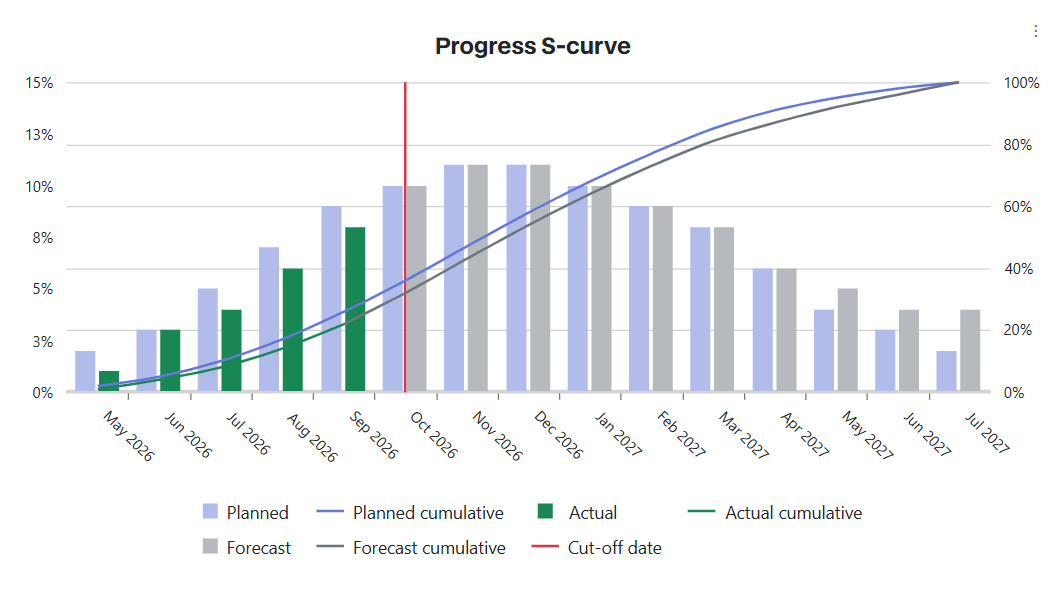
Chart series
Legend entry | Shown as | Color | Shows |
|---|---|---|---|
Planned | Bars | Light blue | Planned Progress per month |
Planned cumulative | Line | Blue | Cumulative planned progress |
Actual | Bars | Green | Actual Progress before the cut-off month |
Actual cumulative | Line | Green | Cumulative actual progress before the cut-off month |
Forecast | Bars | Light grey | Actual Progress from the cut-off month onwards |
Forecast cumulative | Line | Grey | Cumulative progress from the cut-off month onwards |
Cut-off date | Vertical line | Red | The cut-off date |
Before final approval, the chart only shows the Planned series. The Actual, Forecast and Cut-off date entries appear after final approval. The grey Forecast line continues from the last green point without a gap.
Axes, bars and lines
Time axis: one point per month over the reporting period, or the full analysis period if no reporting period is set.
Right axis: cumulative progress, always from 0 to 100 %.
Left axis: monthly increments. It scales to the largest increment, so the tallest bar reaches about 80 % of the chart height. Without any values it runs from 0 to 100 %.
Bars: bars for the same month stand side by side. A bar is only shown for months with a value.
Lines: the cumulative lines are drawn on top of the bars. Each curve starts at the first month with a value and stays flat at the reached total through empty months, up to the last month of the chart. Hover over a month to see its value.
Cut-off date: a red vertical line, named in the legend. Hover over it to see the date. The line is only shown when the request has a cut-off date inside the reporting period.
💡 Tip: On a request with a long analysis period, for example 15 years, a saved value can take a few seconds to appear in the chart while all years are expanded. Collapse the years you are not working in, or set a reporting period, to keep the chart quick.
Chart export
Use the chart's context menu to print the chart or export it to PNG, PDF, JPEG or SVG, the same way as other request charts.
Permissions and request states
Progress follows the normal request permissions:
Everyone who can open the request can see the Progress section, the grid, the reporting period, the cut-off date, the S-curve and the Progress log.
Only users who can update the request can enter progress, change the reporting period and change the cut-off date.
Request state | Planned Progress | Actual Progress | Reporting period | Cut-off date |
|---|---|---|---|---|
Before final approval | Editable | Not shown | Editable | Not shown |
From final approval | Locked for all users | Editable in every month | Editable | Editable |
📌 Note: Entering progress does not send any notifications. To discuss progress values, use the request's Collaboration function.
Progress log
Every change to progress is logged in the Progress tab of the request's Logs submenu. The tab holds only progress changes. They never appear in the other log tabs. Each changed month gets its own log entry.
Column | Content |
|---|---|
Action | Created, Updated, Deleted or Copied from planned. |
Field name | Planned Progress, Actual Progress or Cut-off date. |
Month | The month the value belongs to, for example March 2027. |
Old value | The value before the change. Empty when there was no value. |
New value | The value after the change. Empty when the value was deleted or cleared. |
Date | When the change was made. |
User | Who made the change. |
The log works like the other log tabs: you can filter, search and sort the entries, and it is read-only. Progress values are shown as percentages with two decimals, for example 10.50 %.
Log actions
Created: a value was entered in a month that was empty. Planned Progress copied to a duplicated request is also logged as Created on the new request.
Updated: the value of a month changed.
Deleted: the value of a month was removed, either in the grid or because the analysis period was shortened.
Copied from planned: at final approval, the Planned Progress value of a month was copied into Actual Progress.
Changes to the cut-off date are logged with the field name Cut-off date and the old and new date. The date set at final approval is logged too, with the approving user.
Saving a month with the same value it already had is not logged. Moving the start year of the analysis period is not logged either.
📌 Note: The Progress tab is not shown on additional requests, and it is hidden when the CAPEX report feature is off.
The Progress log shows each change per month with the action, the old and new value, the date and the user.
👉 Learn more about request logs
Reporting database export
Progress values are included in the reporting database export in a new table, capex_request_progress. A CSV export writes the same data to capex_request_progress.csv. The export uses the same request filter, schedule and settings as the existing request export. There is no separate setting for progress.
Column | Content |
|---|---|
| The ID of the request. |
| The origin ID of the request. |
| The month, stored as its first day, for example 2027-03-01. |
|
|
| The monthly increment as a plain number. 10 means 10 %. |
There is one row per request, month and type that has a value. Empty months have no row.
Planned Progress values are exported as
PLANNED. Actual Progress values are exported asACTUALbefore the cut-off month, and asFORECASTEDfrom the cut-off month onwards or when the request has no cut-off date.Cumulative values, totals and the Progress log are not exported. Calculate cumulative values in your BI tool from the increments.
The export ignores the reporting period and always includes every stored value.
Running the export again replaces the rows, so you never get duplicates.
👉 Learn more about the reporting database data structure
Not included in this version
Unlocking and rebaselining: Planned Progress cannot be unlocked or changed after final approval, and there is no revised planned line.
Costs in the S-curve: the S-curve shows progress only. Budget, commitments and cost are not plotted.
Progress above 100 %: the total of a row cannot pass 100 %.
Additional requests: progress is only tracked on main requests.
Progress below request level: you cannot enter progress per Capex line, per phase or more often than monthly.
Progress in properties: progress values cannot be used in expressions or shown as request properties.
Power Mode: progress values are not available in Power Mode. Use the reporting database export for reporting across projects.
Other milestone markers: the cut-off date is the only marker on the S-curve.
Excel export of the grid: the grid cannot be exported to Excel. Export the chart, or use the reporting database export.