Custom Reports
Custom reports let you export a capex request as a PDF, laid out the way your organisation wants it presented. An administrator builds each report and attaches it to a decision route. You generate it from the request itself, and Weissr fills it with that request's data. This page covers how to generate one, what the PDF contains, and what to do when the option is not available. It is written for Capex Management users.
What a custom report is
A custom report is a fixed layout of request properties, text and sections that an administrator designs once and everyone then generates on demand. The content is drawn live from the request, so the PDF always reflects the request as it stands when you generate it.
Which reports you can generate depends on the request's decision route. Each route carries its own set of custom reports.
📌 Note: Custom reports are not document templates, despite the similar names. A document template is a file an administrator publishes for you to download, complete outside Weissr, and upload back as an attachment. A custom report is a PDF that Weissr generates for you from data already in the request. 👉 Learn more about attachments and document templates
Generating a custom report
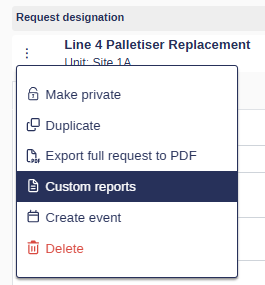
Open Custom reports from the request context menu. The menu is available in three places:
on a row in the request list
inside the request itself
in the sub-requests list
The popup lists every custom report attached to the request's decision route. Select one, and Weissr generates the PDF and downloads it to your computer.
The file is named report-<request id>-<report id>.pdf.

When Custom reports is not available
There are two different situations, and they need different fixes.
What you see | Why | What to do |
|---|---|---|
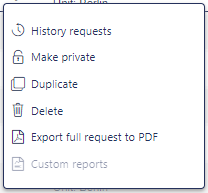
Custom reports is disabled in the context menu | The request has no decision route selected. Without a route, Weissr does not know which reports apply. | Select a decision route on the request. |
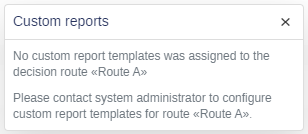
A message saying no custom report templates were assigned to the route | The request has a route, but no custom report has been attached to that route. | Ask your administrator to attach one to the route. |
What the PDF contains
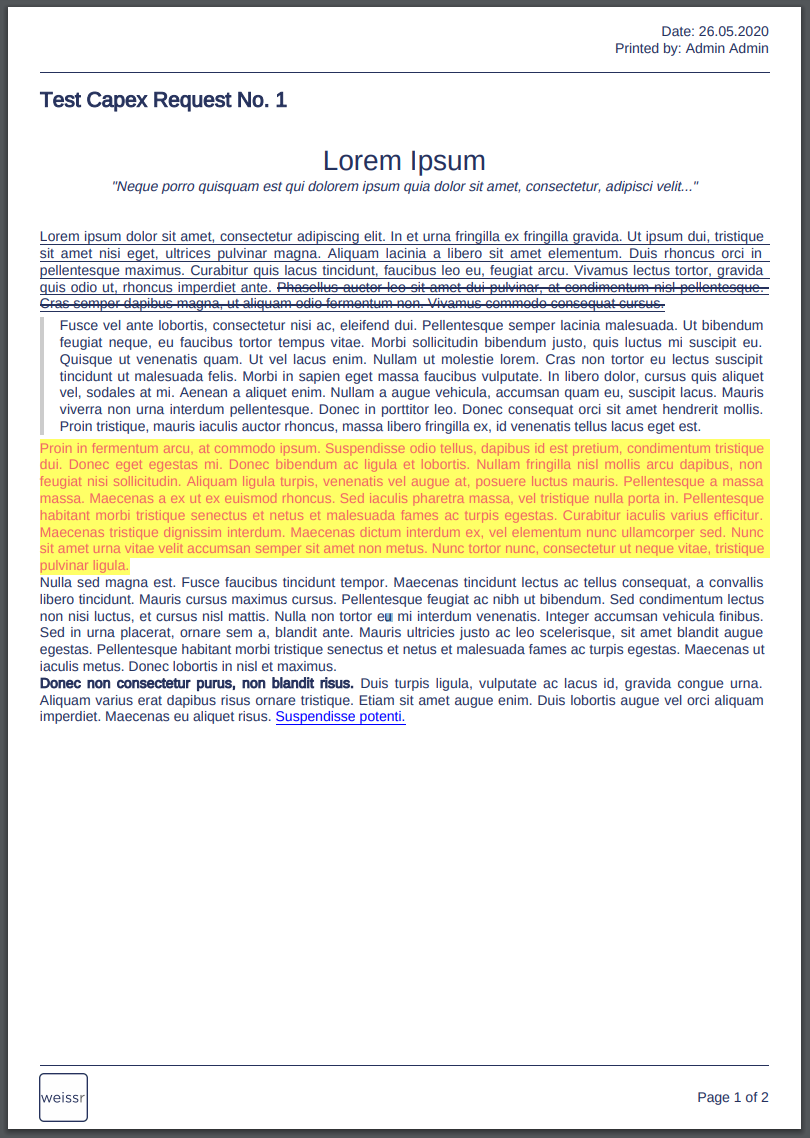
Every custom report shares the same frame. What sits between the header and the footer is whatever the administrator laid out.
These parts are fixed and cannot be configured per report:
The date, printed in the header of every page.
The name of the person who generated the file, printed in the header of every page.
Your company logo, in the bottom left of every page. Weissr falls back to its own logo when no company logo has been uploaded. 👉 Learn more about the company logo
Page numbering, in the footer of every page.
The request name, as the title on the first page. A request with no name is titled
Request #<id>.
The report is A4 portrait.
The appendix
If the administrator ticked Appendix when building the report, the PDF also carries a set of standard charts and tables after the laid-out content:
The value development chart, included only when the request comes from a model.
The capex chart and the aggregated outlays chart.
Tables titled Planned capexes, Actual capexes and Decisions.
Actual capexes appears only once the request has passed Monitoring, and never on an additional request. The capex tables are rotated to landscape so their columns fit, so expect the appendix to mix portrait and landscape pages.
Decisions lists one row per step of the decision route, with the step, its status, the planned and actual decision dates, the decision maker, the assigned decision maker, and any comment. Steps that have not been decided yet appear with those cells empty.
📌 Note: Decision makers appear in the Decisions table as initials, not full names.
Planned capexes and Actual capexes each show the capex lines followed by a column for every fiscal year in the analysis period, labelled FY2026 and so on, plus a Total column and a totals row at the bottom. A request with no expenditure data still produces the table, with no rows in it, rather than leaving it out.
📌 Note: The three appendix table titles, Planned capexes, Actual capexes and Decisions, are always in English, even when you are running Weissr in another language. The column headings inside those tables are translated. A report generated in German or Swedish therefore mixes English table titles with translated column headings.
Why your PDF may differ from a colleague's
A custom report includes only the properties you are allowed to see.
If a property is restricted to particular user groups and you are not in one of them, that property is left out of your PDF entirely, value and label both. The space it would have filled stays blank rather than closing up, so the layout does not shift.
This is worked out at the moment you generate the report, for you personally. Two people can generate the same custom report from the same request and receive different documents.
📌 Note: Holding the Administrator permission bypasses property restrictions, so an administrator sees every property in the report. The Capex Management configuration permission does not bypass them.
For administrators
A custom report is built as a form and then attached to a decision route. Two steps, in two different places:
Build the report. Administration → Capex Management → Form management → Forms. Give it a name, drag in Text, Property, Section and Page break components, and publish it.
Attach it to a route. Administration → Capex Management → Approval routes, then the Custom reports button on the route.
A route can carry several custom reports, and one form can be attached to several routes.
📌 Note: Images pasted into a Text component are removed when the PDF is generated. To show an image in a custom report, use an image property rather than pasting the image into text.
📌 Note: The columns shown in the appendix Planned capexes and Actual capexes tables follow the capex grid column settings and cannot be changed from within the application. Contact Weissr support if they need to be different.
👉 Learn more about Form Management
Access
Action | Required permission |
|---|---|
Generate and download a custom report | None specific. Anyone who can open the request can generate its custom reports. |
Create, edit, duplicate or delete a report | Administrator, or Capex Management configuration |
Attach a report to a decision route | Administrator, or Capex Management configuration |
Common questions
Question | Answer |
|---|---|
Why is Custom reports greyed out? | The request has no decision route selected. Select one and the option becomes available. |
I get a message that no templates are assigned to the route. | The route has no custom report attached to it. This is an administrator task, not something you can fix on the request. |
Why does my colleague's PDF contain more than mine? | Custom reports honour property permissions per person. Properties restricted to user groups you do not belong to are left out of your copy. |
The link opened a new browser tab showing an error instead of downloading a PDF. | Generation failed. Weissr does not show a friendly message in this case, so note which report and which request, and contact your administrator. |
Can I change what is in a custom report? | No. The layout is built by an administrator and is the same for everyone who generates it, apart from properties you are not permitted to see. |
Which logo appears at the bottom of the page? | Your company logo, uploaded in Administration → Settings → Company. If none has been uploaded, the Weissr logo is used. |
How is this different from a document template? | A document template is a file you download, fill in and upload back. A custom report is generated by Weissr from the request data. |