Divisions
Divisions are the top level of business structure below the Group node in a Capex Strategy project. For large organizations, splitting operations into divisions gives each business unit its own branch of the asset tree, its own alternatives and its own cash flow model, while the group level can still consolidate and compare across all of them.
This page covers what a division is, how divisions are created and maintained in the Administration module, how users move between them inside a project, and what governs access.
What is a division?
A division is a node in the Capex Strategy hierarchy, one level below the Group node and one level above sites. Divisions are maintained per project, so each Capex Strategy project keeps its own division structure.
Level | Position |
|---|---|
Group | Top of the project. One per project, created automatically. |
Division | Business units, for example "Europe" or "Consumer Goods". Every project needs at least one. |
Site | Physical plants and facilities. Sites are always placed under a division. |
📌 Note: A division must exist before any site can be added to the project. Sites cannot sit directly under the Group node.
Sites can be reassigned between divisions later by users with the right permissions, but a site can only belong to one division at a time.
👉 Scope covers the full hierarchy from Group down to Category, and the grid where sites are added and moved.
What does a division have of its own?
Each division carries its own strategy work, built independently of the other divisions in the project:
A division-level Base Alternative
Its own Strategic Building Blocks
Its own Strategic Alternatives
Its own working currency and country, which drive currency conversion and the inflation rate used for division-level input data
This is what makes local analysis possible: a division can be evaluated and optimized on its own terms before anything is compared at group level.
How do divisions roll up to the group level?
Approved strategic alternatives from each division can be combined into scope-level alternatives at the group level. That gives corporate decision makers the total effect of the prioritized division strategies across the whole organization.
Divisions work as reusable building blocks at the group level, in the same way strategic building blocks are used inside a division.
📌 Note: Only one alternative per division can be included in a group-level alternative at a time.
The Divisions page
Divisions are configured per project, at Administration → Capex Strategy → [Project] → Divisions. Each project maintains its own division structure, which allows for localized configuration, modeling and analysis.
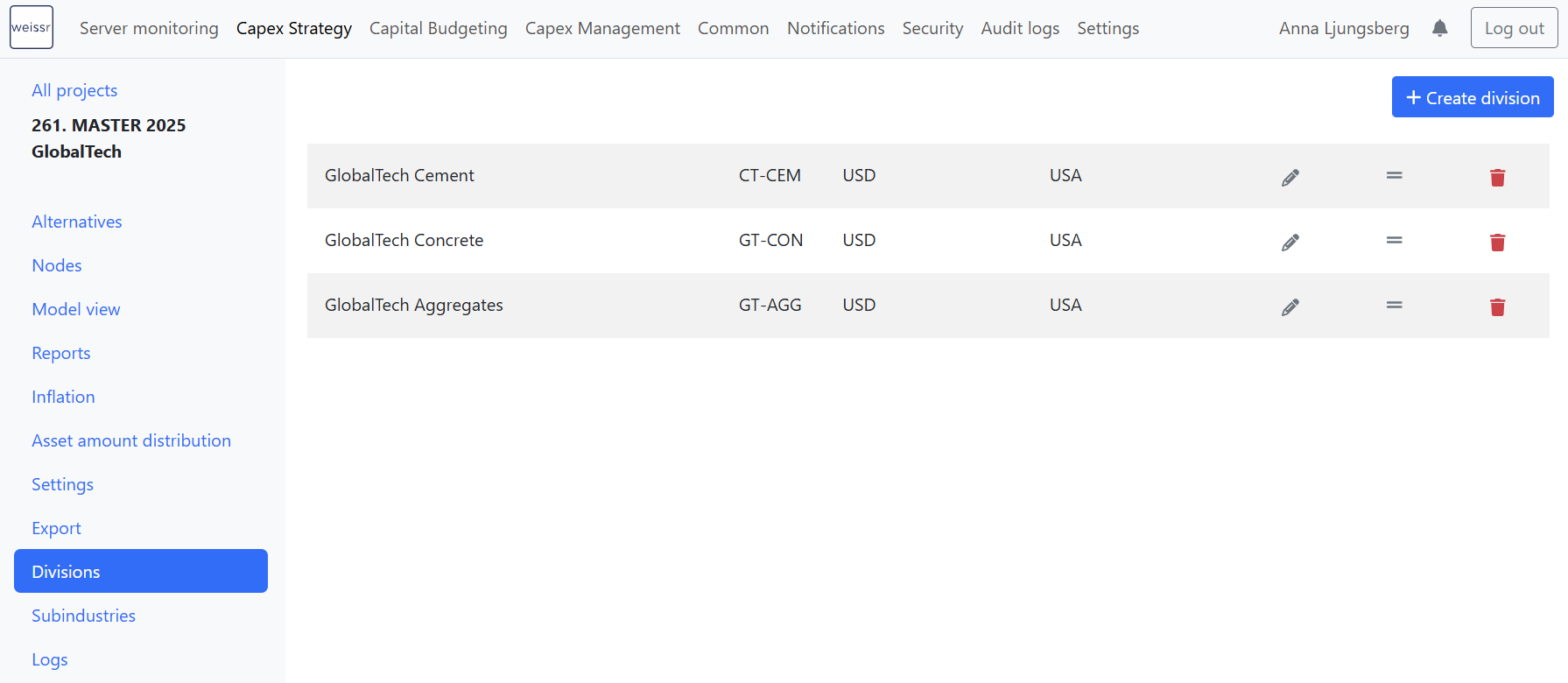
The Divisions page lists every division defined in the project and shows the following:
Column | What it shows |
|---|---|
Name | Full name of the division. |
Short name | Abbreviation used in reports, exports and comparisons. |
Currency | The division's working currency. |
Country | The country the division is based in. |
Actions | Edit (✏️) and delete (🗑️) the division. |
Creating and changing divisions
Divisions are created, reordered, edited and deleted from Administration → Capex Strategy → [Project] → Divisions.
📌 Note: Changes to divisions are not visible in the project until the project is reloaded. This applies to newly created divisions and to edits.
How do I create a division?
Go to Administration → Capex Strategy → [Project] → Divisions.
Click + Create division in the top-right corner.
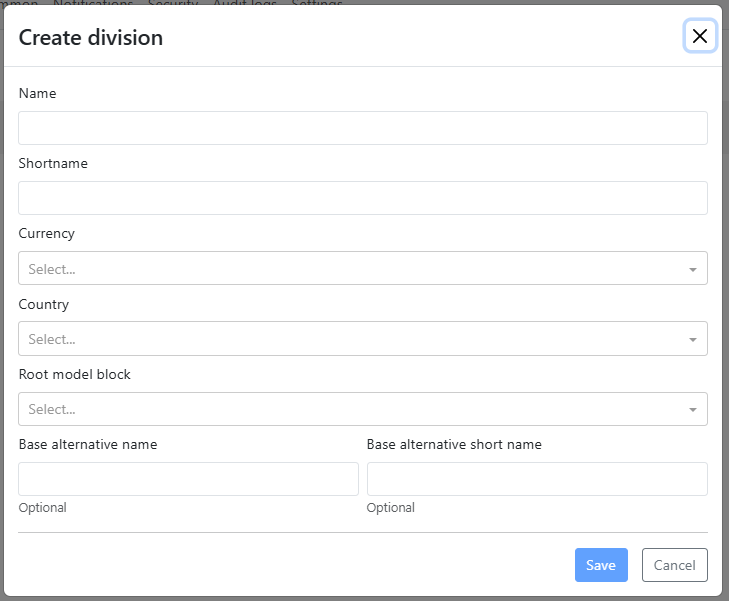
Complete the form fields described in the table below.
Click Save. The new division appears in the list.
Reload the project to apply the change and make the division available for further configuration, such as adding sites under it.
Field | Required | What it does |
|---|---|---|
Name | Yes | Full name of the division. |
Shortname | Yes | Abbreviation used in exports, reports and comparisons. Keep it short and meaningful so it reads well next to other divisions. |
Currency | Yes | The division's operational currency. All underlying site data is converted to this currency in division-level cash flow model data and charts. |
Country | Yes | Where the division is based. The inflation rate set for the country is used for division-level input data. |
Root model block | Yes | Connects the division to a predefined set of cash flow logic. Only one selection is allowed, and it must be the Group Block. |
Base alternative name | No | Name of the division's base alternative, used in charts and exports of division-level data. |
Base alternative short name | No | Abbreviated form of the base alternative name, used in charts and exports. |
🔧 Configuration: Permissions for a division can be assigned once the division has been created. 👉 Assigning Permissions in the Organizational Structure covers how node permissions are granted and how inheritance resolves.
💡 Tip: Use clear names that map to real business units or geographies. Short names show up next to each other in reports and comparisons, so consistency pays off later.
How do I reorder divisions?
Drag and drop the division using the ═ handle on the right side of the list. The order set here is the order divisions appear elsewhere in the project.
How do I edit a division?
Click the ✏️ icon next to the division you want to change.
Update the fields in the edit form.
Click Save.
Reload the project for the changes to take effect.
How do I delete a division?
Click the 🗑️ icon next to the division you want to remove.
Confirm the deletion.
⚠️ Warning: A division cannot be deleted while it is still in use. Deletion is blocked if the division has any sites assigned to it, or if it is referenced in the project's scope, for example in a scope-level alternative. Clear both before deleting.
How do I delete a division that is in use?
Reassign or delete every site placed under the division. Sites are moved and removed in the Scope grid: 👉 Scope
Remove any scope-level dependencies, such as references to the division in scope alternatives.
Once the division is empty and no longer referenced, click the 🗑️ icon to delete it.
Navigating divisions in a project
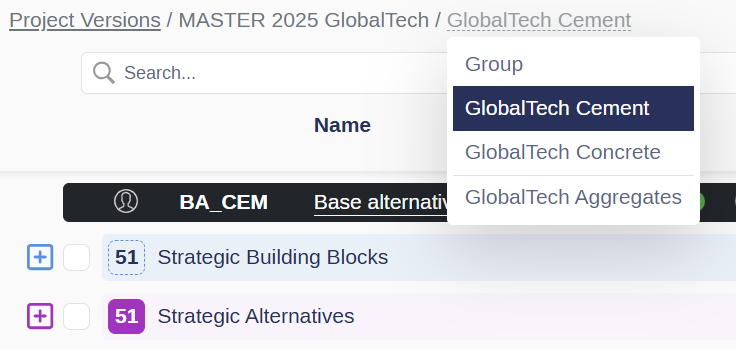
Use the division selector dropdown in the project view. Each division is worked on independently, with its own Base Alternative, Strategic Building Blocks and Strategic Alternatives, so switching division changes the whole working context.
Who can see and change divisions?
Access to divisions is permission-based and set per node, so two users in the same project can see different parts of it:
Some users have access to a single division
Others have access to every division in the project
Creating, editing and deleting divisions is an Administration task and requires access to the Capex Strategy administration settings.
👉 Assigning Permissions in the Organizational Structure, for node permissions and how inheritance resolves.
👉 Global Permissions, for every global permission in Weissr Capex.
Best practices
Define divisions during initial project setup, before assigning sites or building asset trees.
Use clear naming that reflects business units or geographies, and keep short names consistent across divisions.
Review the division structure whenever the organization reorganizes, so the project still matches how the business actually operates.
Set currency and country when you create the division. Changing them later triggers recalculation further down the tree.
Related pages
👉 Scope, for the full hierarchy and the grid where sites, sub-industries and categories are maintained.
👉 Assigning Permissions in the Organizational Structure, for node permissions.
👉 Assets, for the asset levels below the category.
👉 Asset Data Import from Excel, for bulk asset import, which is scoped to one division at a time.