Sub-industries
Sub-industries are the level of a Capex Strategy project that sits between a site and its categories. They are the first level that can be tailored to what a plant actually produces, so they are where a generic structure becomes a pulp line, a paper line or a rolling mill.
You define a sub-industry once per project in Administration, and it is then used in three places: as a node level in the Scope, as the anchor for a cash flow model block, and as the scope of a report definition. This page covers what a sub-industry is, the choice between machines and materials, and how you create, change and remove sub-industries.
What is a sub-industry?
A sub-industry is a node level in the Capex Strategy hierarchy, one level below a site and one level above the categories that assets hang off. Each sub-industry aggregates the process data underneath it, normally into its own P&L sheet in the cash flow model.
Level | Position |
|---|---|
Site | Physical plant or mill. Carries country, currency and the financial assumptions. |
Sub-industry | Production line or process area, for example pulp or paper. A sub-industry always sits under a site. |
Category | The machine or process, for example PM1 or converting line 1. Assets hang off categories. |
Sub-industries are maintained per project, so each Capex Strategy project keeps its own list. A sub-industry you define in one project is not available in another.
📌 Note: The menu item and the buttons in the application use one word, Subindustries and Create subindustry. This documentation and the Scope grid use the hyphenated form, sub-industry. They mean the same thing.
Why sub-industries matter
They tie assets and investments to a specific process block in the cash flow model.
They give each production line its own financial view instead of one undifferentiated site total.
They are a node level, so node permissions can be granted for one production area and not another.
Examples
A paper mill with both pulping and paper production uses one sub-industry per line, so capex and assets are assigned separately and each line links to its own model block.
A steel plant splits investments between smelting, rolling and finishing, each represented as its own sub-industry tied to its own model inputs.
Machines or materials?
Every sub-industry is either a machines sub-industry or a materials sub-industry. The choice decides how the cash flow model is built underneath it, which is why you cannot change it afterwards.
Machines | Materials | |
|---|---|---|
Model structure | One or more cash flow model blocks, each built for a specific process. | A single replicable model block, repeated for each material or quality. |
Use when | Processes differ significantly between production lines or assets. | The production process is the same for each material or product variant. |
Example | A paper mill with converting operations: one block for the paper machine, another for the converting lines. | A pulp mill producing several pulp qualities: the same process block repeated per quality. |
Below it in the Scope | Categories, which is where assets and cash flow blocks connect. | Materials, listed in the site's materials grid. |
⚠️ Important: the machines or materials choice is permanent
The Uses setting is locked as soon as you save the sub-industry, and the field is disabled when you reopen it for editing. Changing it later would invalidate the model structure already built beneath it, so the only way to switch is to create a new sub-industry and rebuild underneath it. Decide before you save.
The Subindustries page
Sub-industries are configured per project, at Administration → Capex Strategy → [Project] → Subindustries.
The page lists every sub-industry defined in the project:
Element | What it shows |
|---|---|
Name | Full name of the sub-industry. |
Uses machines / Uses materials | Muted text under the name, showing which model structure the sub-industry was created with. |
Info icon | Shown when the sub-industry is used in a model block. Hovering it reads "Subindustry is used in model blocks and cannot be removed". |
Actions | Edit (pencil) on every row. Delete (bin) only on rows that are not used in a model block. |
The list has no sorting, filtering or paging.
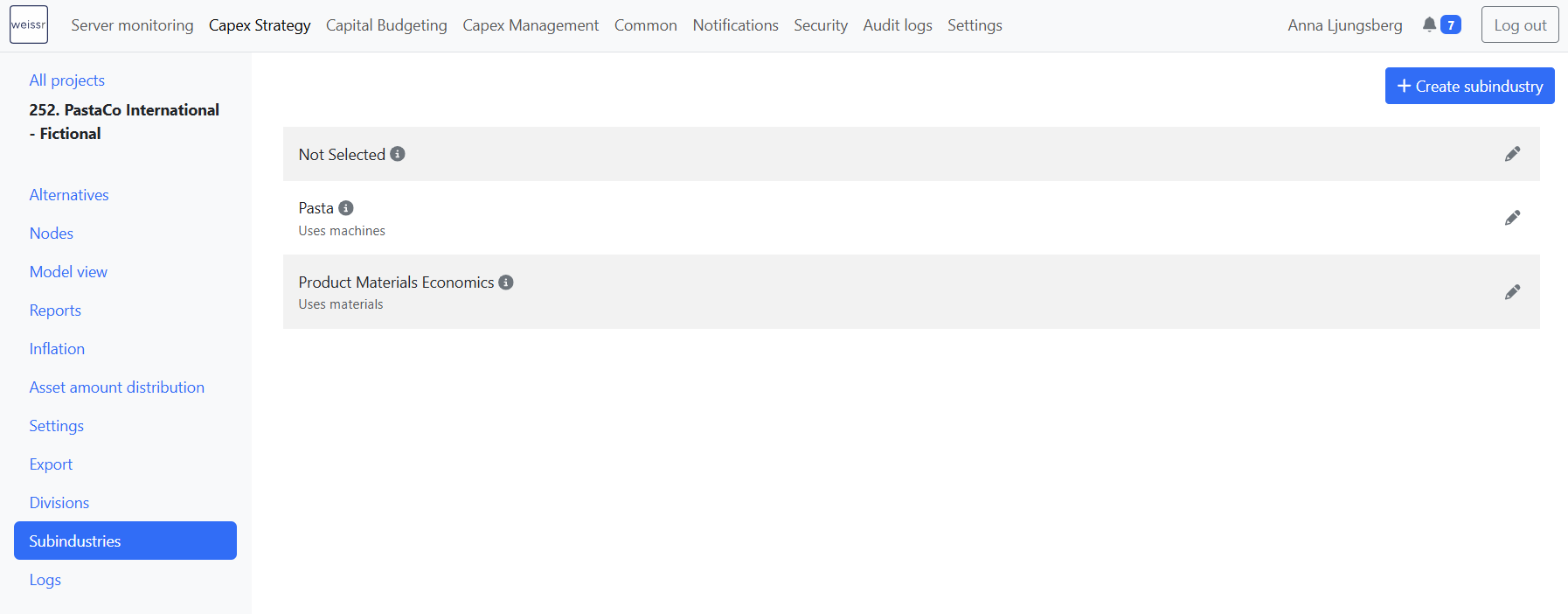
What a new project starts with
Every new Capex Strategy project is created with three sub-industries already in place:
Name | Short name | Uses |
|---|---|---|
Pulp | Pu | Materials |
Paper | Pa | Machines |
Not selected | Ns | Neither |
Pulp and Paper are ordinary sub-industries. Rename them to suit your business, or delete them if nothing uses them. Not selected is a system row that acts as a wildcard, so a report definition pointing at it matches any sub-industry. Leave it as it is.
Creating and changing sub-industries
How do I create a sub-industry?
Go to Administration → Capex Strategy → [Project] → Subindustries.
Click Create subindustry in the top-right corner.
Complete the form fields described in the table below.
Click Save. The new sub-industry appears in the list.
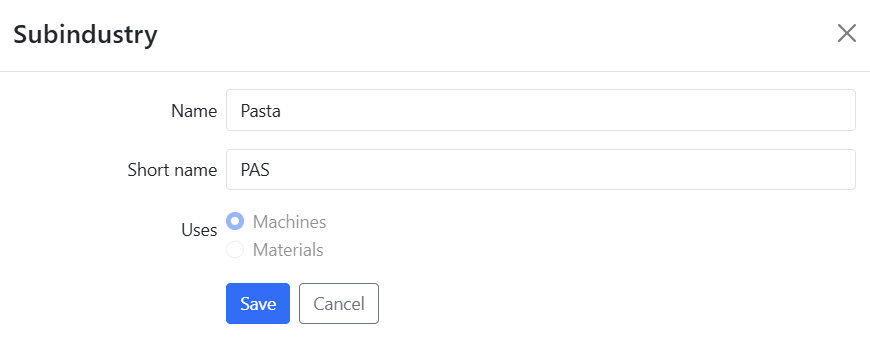
Field | Required | Rules | What it does |
|---|---|---|---|
Name | Yes | Maximum 31 characters. Must be unique within the project. | The name shown in the Scope grid, in the model-building tree and in the report definition dropdown. |
Short name | Yes | Maximum 255 characters. Must be unique within the project. | Compact identifier used where the full name does not fit. |
Uses | Yes | Machines is preselected. Cannot be changed after saving. | Decides whether the model below the sub-industry is built from machine blocks or from one repeatable material block. |
Both names are checked for uniqueness as you type. If the name is already in use in this project, the field shows "Name is already taken" and Save stays disabled.
💡 Tip: You can also reach this page from model building. The create sub-industry block popup links straight to it when the sub-industry you need does not exist yet.
How do I edit a sub-industry?
Click the pencil icon next to the sub-industry you want to change.
Update the Name or the Short name.
Click Save.
Only the two names can be changed. The Uses radio buttons are disabled on an existing sub-industry.
How do I delete a sub-industry?
Click the bin icon next to the sub-industry you want to remove.
Read the confirmation dialog and click Delete.
The bin icon only appears on sub-industries that are not used in a model block. If you see an info icon and no bin icon, the sub-industry is in use.
⚠️ Warning: The check that blocks deletion only covers cash flow model blocks. It does not check whether Scope nodes or report definitions still point at the sub-industry. Delete only sub-industries you are certain nothing depends on.
How do I delete a sub-industry that is in use?
Open the project's model building view and remove or repoint the cash flow model block that uses the sub-industry.
In the Scope, remove or reassign any sub-industry nodes under the affected sites.
Return to Administration → Capex Strategy → [Project] → Subindustries. The bin icon is now available.
What a sub-industry is used for
The sub-industry is referenced across most of Capex Strategy, which is why the machines and materials choice is locked and why sub-industries in use cannot be deleted.
The Scope and the asset tree
You create sub-industry nodes in the Scope grid under a site, and each node points at one of the sub-industries defined here. A sub-industry node has to point at a real sub-industry, so a node left without one fails validation with "Subindustry should have real industry".
The site view splits its children into a machines grid and a materials grid according to the setting on the sub-industry each node points at. You can only choose the sub-industry while the node is new. Once the node is saved it is fixed, and trying to change it in a different alternative asks you to restore the node first.
👉 Scope covers the Scope grid, including how a sub-industry node is added under a site.
Cash flow model blocks
A project has at most one cash flow model block per sub-industry. Model building offers a sub-industry block created from a template, and you can duplicate a block onto another sub-industry. The duplication target list only offers sub-industries that have the same machines or materials setting and are not yet used by a model block.
That one-to-one rule is what makes a sub-industry undeletable once a block exists for it.
Reports
Every report definition belongs to exactly one sub-industry, and the field is mandatory. Report node selections are built around the level as well: Sub-Industry, Sub-Industry Sibling and All Sub-Industries. A report definition pointing at Not selected matches any sub-industry.
📌 Note: In the Reports administration form the dropdown for this field is labelled Industry. It lists the sub-industries defined on this page.
👉 Configuring Reports covers report definitions and where the sub-industry is chosen.
Asset import
In asset data imported from Excel, the sub-industry is the second level of the path: Mill, then Sub-Industry, then Category, then the two subcategory levels.
👉 Asset Data Import from Excel covers the import file structure.
Not used in Capex Management
Sub-industries are a Capex Strategy concept only. Nothing in Capex Management reads the sub-industry.
Who can see and change sub-industries?
The page requires the Administrator permission. Anyone who can open Administration → Capex Strategy and select a project can create, edit and delete sub-industries in it. There is no read-only view of the page.
👉 Permissions covers every permission in Weissr Capex.
Best practices
Decide machines or materials before saving. It is the one setting you cannot correct afterwards.
Create the sub-industries a project needs during initial setup, before the model blocks and the Scope are built out.
Name sub-industries after the production line or process, not after the site, since the same sub-industry is reused across every site that runs that process.
Keep names within 31 characters and make short names consistent, because both appear next to each other in model building and report definitions.
Delete unused sub-industries early. Once a model block exists the sub-industry is fixed in place.
Related pages
👉 Scope, for the full hierarchy and the grid where sub-industry nodes are added under a site.
👉 Divisions, for the level at the top of the same hierarchy.
👉 Nodes (Organizational Structure), for the hierarchy as configured in administration settings.
👉 Configuring Reports, for report definitions and the sub-industry they belong to.
👉 Capex Strategy Vocabulary, for the definitions of every level in the navigation tree.